We use computers to do lots of things. An important role of them in our daily life, is to be an efficiency tool helping us to complete the work.
As we spend so much time on operating computers, we need some skills to save time. In this post, I will introduce essential Windows shortcut keys you need to know at work to boost your efficiency.
Why we use shortcut keys on Windows?
The most common IO(input & output) devices we use to interact with a computer are keyboards and mice.
The mouse improves the operational flexibility, as you can move the cursor to anywhere, and you can drag objects. However, you need to move the mouse to the target object, such as a button, and then click it. Sometimes, you also need to right-click and then select an option from the menu, which takes a lot of time.
Some specific operations, such as copying and pasting, can be done directly with Windows shortcut keys, which is more direct and efficient than using the mouse. That’s why when an operation can be completed with a shortcut key, we recommend using the shortcut key.
Essential Windows shortcut keys
Windows comes with many preset shortcut keys, and some software has its own as well. Fortunately, most software will not override the Windows default ones, so the following shortcut keys can be used in most Windows systems and software.
Ctrl+Shift+V

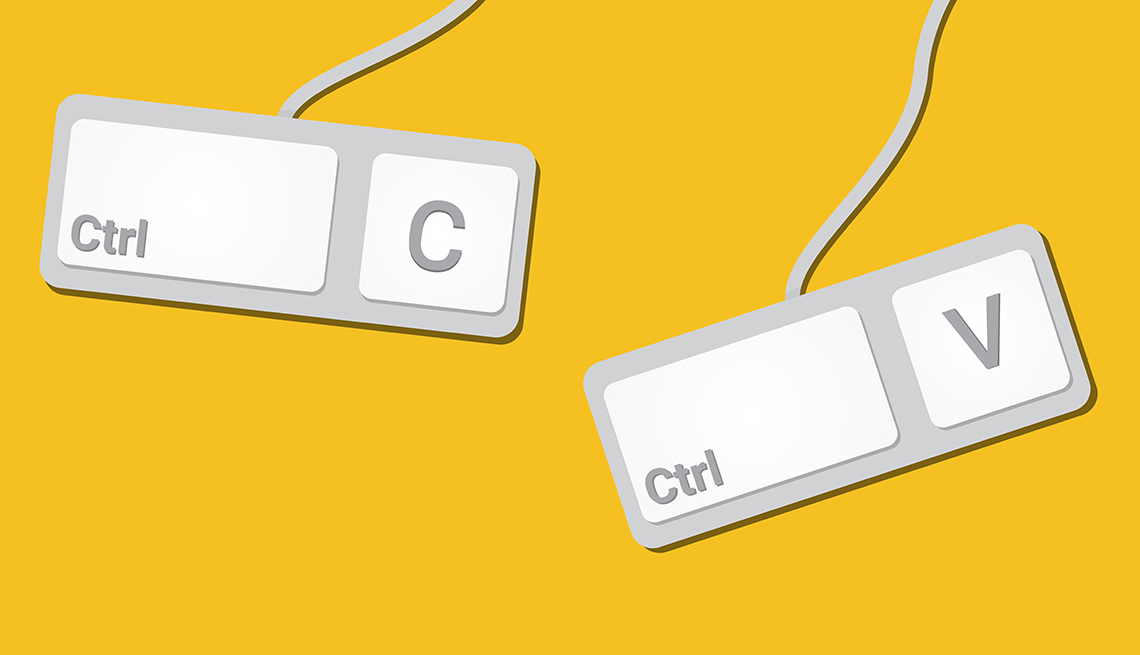
We often need to copy and paste content, so Ctrl+C and Ctrl+V are the most familiar shortcuts.
However, when you copy formatted content and paste it into a rich text editor (such as Microsoft Word), the system will try to retain the source format, causing our document content to be disrupted and time-consuming to adjust. Moreover, when the target document does not support the source format, the system needs to spend a lot of time to adjust, and even cause the software to freeze.
Therefore, when we do not need to retain the source format, we can press the Ctrl+Shift+V shortcut key to paste the content as plain text, saving a lot of trouble.
Ctrl+S
Imagine finishing a full day of typing or designing. Eager to enjoy your free time, you quickly close the window without double-checking if you’ve saved your work. When you realize this and open the document, only to find a blank screen, it’s already too late for regret.
Even in 2024, there still remains too much software that has no AutoSave feature. How can we prevent this tragedy from happening?
We recommend that you develop a habit of pressing Ctrl+S immediately after modifying a file. This is because in most software, this shortcut means saving a file. In this way, even if you forget to save at some point, or the software crashes, or the system shuts down abnormally, at least the previous progress has been saved, and your loss will not be too great.
Ctrl+Z & Ctrl+Y
Many people know that Ctrl+Z is the shortcut key for the undo operation. When you make a change but want to revert to the previous state, you can press Ctrl+Z.
However, after undoing, you might regret it and think that the new state is actually better. Does that mean you can only repeat the previous operation to modify the content again? Not at all! You can simply press Ctrl+Y to redo the change. You can think of Ctrl+Z as going backward and Ctrl+Y as going forward.
Ctrl+A
In our work, we often have to deal with a large number of files and countless data.
For example, an Excel spreadsheet that collects operational data for the entire year may have twenty to thirty columns and thousands of rows. When we want to select all the data, we can simply press Ctrl+A to achieve this, without the need to drag or click any menus.
Similarly, when we need to organize a large number of files, Ctrl+A can greatly improve our efficiency.
Windows key+E

The Windows File Explorer is the most commonly used entry point for saving and finding files. If you don’t know how to open it using keyboard shortcuts, you’ll have to click the icon on the taskbar or go back to the desktop to find the “This PC” icon(How to add “This PC” to Desktop on Windows 11?) and double-click to open it.
Although it may seem like using the mouse to open it doesn’t take much time, the accumulated duration from repeating this action every day can be quite significant. Therefore, we recommend that you master the Windows key+E shortcut key.
Windows key+D
Generally, after the software is installed, an icon will be added to the desktop so that users can start it quickly. Although it is not recommended, many people like to put documents on the desktop as well.
At work, we need to open new software at any time. At this time, we do not need to minimize the open windows one by one. We only need to press Windows key+D to quickly return to the desktop.
Alt+Tab & Windows key+Tab
As mentioned earlier, you often need to open multiple software at work, and generally switch back and forth frequently between different windows. At this time, there are two sets of Windows shortcut keys that will be very useful.
One is Alt+Tab, which allows us to quickly switch windows. Short press to switch to the previous window, long press, all windows will be listed on the screen, then hold down Alt and press the Tab key to select the next window. You can also hold down Alt and use the keyboard arrow keys to select windows faster.
The other is Windows key+Tab, which is used to manage virtual desktops. When you open a large number of windows and make the screen messy, you can press this shortcut key to create a new virtual desktop and drag some windows to the virtual desktop with the mouse. For example, you can put the company’s office software on one desktop and put browsers and other tools for searching information on another desktop.
Want to know more usefull Windows shortcut keys? Here you are: Keyboard shortcuts in Windows - Microsoft Support
