You’ve likely had this experience: needing to download software from the internet, possibly for long-term use or perhaps just temporarily, but not being sure whether it’s safe.
Even with antivirus software installed, there’s no guarantee that all risks will be intercepted.
Features of Sandbox
Those with virtual machine experience might say: “Why not just test it on a virtual machine? If there’s an issue, you can just restore from a snapshot.” While a virtual machine is indeed a solution, it is much more cumbersome compared to Windows Sandbox. Windows Sandbox offers the following advantages:
- Free. Sandbox is a built-in feature of Windows Professional and Enterprise editions, so there’s no need to download additional software. Simply enable this feature and you can use it right away. Naturally, users don’t need to purchase additional virtual machine software.
- Lightweight. Traditional virtual machine software requires users to download a full system image (usually 4-5GB) and then step-by-step installation after creating the virtual machine. Sandbox is different; it reuses Windows 10 kernel files, and once enabled, it only takes up around 100MB (traditional virtual machines take up 15-20GB). This small size combined with native system-level memory management results in lower performance consumption and faster speed for Windows Sandbox.
- Secure. Any software installed and run within Windows Sandbox won’t affect the host system. Once you close the Sandbox program, all files and programs will be wiped. The next time you start it, you get a brand-new, clean system.
Requirements for Sandbox
Not every PC can use Windows Sandbox. It must meet the following conditions:
- The system must be Windows Professional or Enterprise edition
- Intel or AMD 64-bit processor, at least dual-core
- Virtualization enabled in BIOS (usually enabled by default)
- Minimum of 4GB RAM (8GB or more recommended)
- At least 1GB of available storage space (SSD recommended)
For PCs purchased in recent years, the above hardware requirements are easily met. However, most home computers use Windows Home edition. To use Windows Sandbox, consider upgrading to the Professional edition to unlock more features and usage scenarios.
How to Use Sandbox
By default, Windows Sandbox is not enabled. Users need to manually enable it by going to [Control Panel – Programs – Programs and Features – Turn Windows Features on or off].
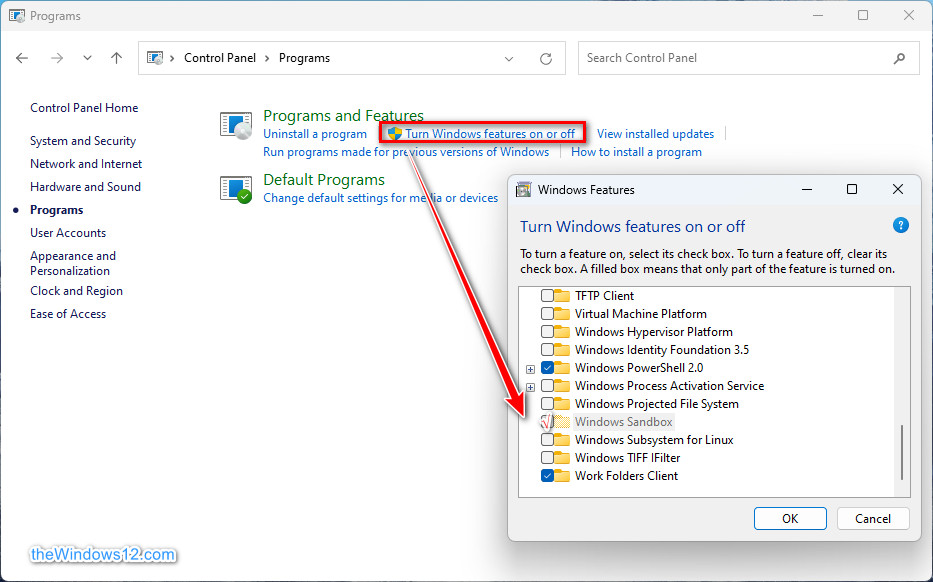
Check [Windows Sandbox], click OK to save, and restart your computer as prompted. After restarting, you can find the Windows Sandbox icon in the Start menu.
As seen in the video, starting Windows Sandbox only requires a single click and does not require opening a virtual machine through other software. Although it also uses the principle of a virtual machine, due to the aforementioned file reuse mechanism, the “boot” speed is very fast, almost like opening a regular program.
Additionally, Sandbox does not require complex setups. It is ready to use immediately and dynamically adjusts resource usage, including memory and processor, so no resources are wasted idly.
Windows Sandbox can be used in full screen. In full-screen mode, the fixed status bar can be canceled, making the operation experience similar to using a regular system. When finished, like other software, click the close button in the upper right corner. Sandbox will remind you that all data will be cleared upon closure. If you need to save files from the sandbox, copy them to the host machine beforehand. It supports clipboard sharing.
