
Microsoft had announced the EOL date of Windows 10 as early as the time we published the article Official: Windows 10’s End of Life(EOL) Date. Now, the day has come.
Tomorrow, you will no longer recieve any security updates for Windows 10, unless you enroll in the Extended Security Updates(ESU) program.
There are three ways to enroll — two of them are free. Microsoft 365 users can get one year of ESU at no extra cost by enabling Windows Backup to OneDrive. If you’re not a M365 subscriber, you can either redeem 1,000 Microsoft Rewards points or pay $30. See our earlier analysis on whether paying $30 for ESU makes sense.
If you’d rather stay on Windows 10 long-term without worrying about ESU expiration, Windows 10 LTSC continues to receive updates beyond the general EOL date.
According to feedback from communities like Reddit, joining the ESU program is “as easy as two clicks”. We understand there must be a reason why you prefer to stay on Windows 10 rather than upgrade to Windows 11. That’s why we recommend joining the ESU program now.
How to Enroll in the ESU Program
To register your Windows 10 device into the Extended Security Updates (ESU) program, you must meet certain prerequisites and follow Microsoft’s enrollment wizard.
✅ Prerequisites
Before enrolling, make sure your PC meets these requirements:
- Runs Windows 10 version 22H2 (Home, Pro, Pro Education, or Workstations editions).
- Has the latest cumulative updates installed.
- You’re signed in with a Microsoft account that has administrator privileges.
- The Microsoft account cannot be a child account.
- ESU license will be linked to that Microsoft account (not transferable).
🔗 Official Microsoft Support Page – Windows 10 Consumer ESU Program
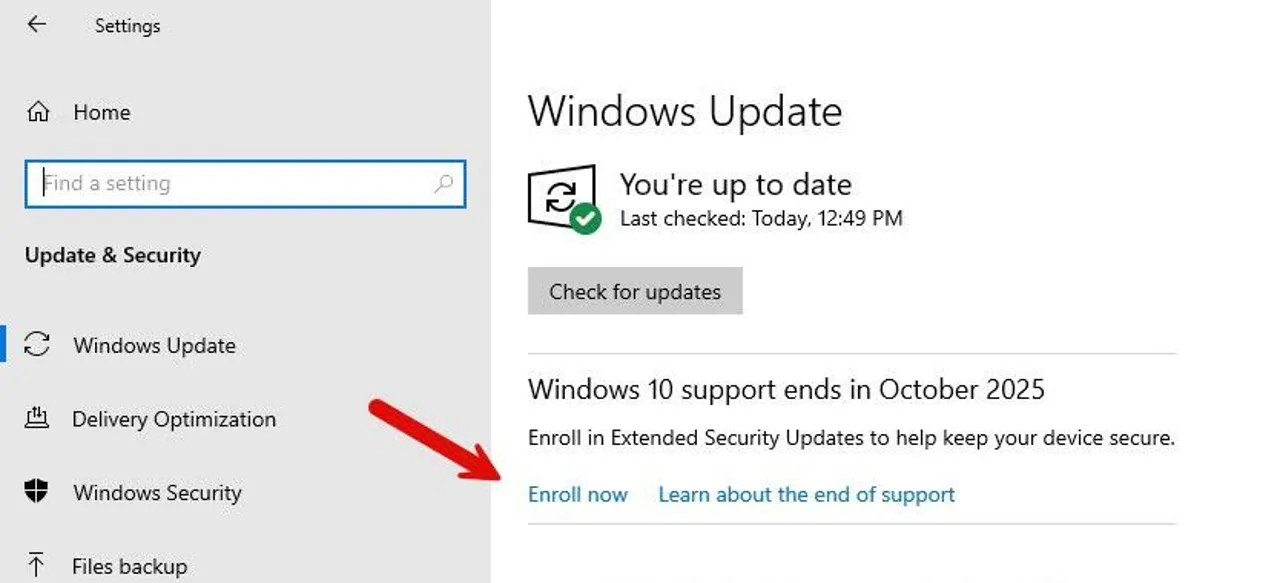
Once your system qualifies, head to Settings → Update & Security → Windows Update, and you’ll see a new “Enroll now” option.
💡 3 Enrollment Options
Microsoft offers three enrollment methods — two of them free of charge:
- At no additional cost, if you are syncing your PC settings (via Windows Backup / OneDrive).
- Redeem 1,000 Microsoft Rewards points.
- One-time purchase of USD $30 (or local equivalent, plus tax).
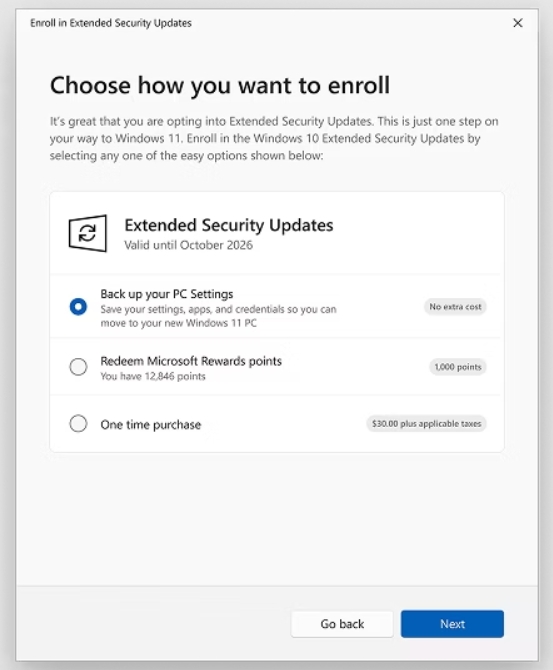
If your goal is the lowest cost, option 1 is recommended. Because ESU is tied to your Microsoft account, just sign in and follow the on-screen prompts.
Interestingly, many Reddit users report that even when OneDrive isn’t automatically backing up or syncing, they still managed to get ESU eligibility. Some speculate this might be an early rollout stage or simply a way for Microsoft to encourage more users to sign in with a Microsoft account.
If You Don’t Enroll in ESU — What Changes?
Some users are hesitant to link a Microsoft account or are concerned about privacy. The good news: Windows 10 will continue to run normally even after the EOL date.
However, you’ll stop receiving security patches and non-security updates starting October 15, 2025.
What You Lose
- No more security or feature updates for the OS itself.
- No guaranteed driver updates from Microsoft Update.
What You Still Get
- Microsoft Edge and WebView2 Runtime updates will continue through October 2028.
- Microsoft Defender definitions and malware intelligence will continue updating until at least 2028.
In everyday use, if you maintain safe habits — avoid installing unknown software, stay away from suspicious links, and keep antivirus active — your system will likely remain usable for a while.
For organizations, however, the lack of security patches poses a serious compliance and data-protection risk. ESU is essential for any environment handling sensitive or network-exposed data.
After the ESU Period Ends
The consumer ESU program runs until October 13, 2026. You can enroll anytime before then, and your PC will receive all previous and future ESU patches automatically.
For enterprises and schools, Microsoft offers additional ESU options that extend up to three years — but those come with licensing fees that increase annually.
After that, Windows 10 will officially be unsupported in every capacity.
Alternative: Windows 10 LTSC Editions
If you’re not ready to move to Windows 11 but still want extended security support, the Windows 10 LTSC (Long-Term Servicing Channel) editions might be worth considering:
- Windows 10 Enterprise LTSC 2021: Supported until January 12, 2027.
- Windows 10 IoT Enterprise LTSC 2021: Supported until January 13, 2032.
You can read our detailed comparison here:
👉 Is Windows 10 LTSC the Best Windows 10 Edition, Now?
LTSC versions don’t receive frequent feature updates, and app compatibility can be limited, but they provide long-term stability and security — ideal for industrial, kiosk, or embedded use cases.
Ready for the Next Chapter: Windows 11 and Beyond
If you want not only security but also new features such as AI capabilities, better memory management, and ongoing app compatibility, upgrading to Windows 11 is the best path forward.
If your hardware doesn’t meet Windows 11 requirements, you have a few options:
- Buy a modern PC preinstalled with Windows 11.
- Use Windows 365 or cloud PCs to access Windows 11 remotely.
- Continue with Windows 10 + ESU temporarily while planning your upgrade.
Remember: ESU is a bridge, not a destination. It’s meant to buy time — not to postpone upgrades indefinitely.
Final Thoughts
Today marks the official end of support for Windows 10 — a system that’s been with us for nearly a decade.
If you want to keep your PC safe for another year, join the ESU program now.
If you’re ready for what’s next, migrate to Windows 11 and enjoy continuous innovation.
Either way, the choice you make today determines how securely and smoothly you’ll continue your Windows journey tomorrow.
References:
