
In the course of our daily office routines, we often encounter a common dilemma: how can we confirm whether we have an active Microsoft 365 subscription?
Whether it is for accessing the latest features or ensuring seamless use of Office applications, this knowledge is paramount. Worry not, I will guide you step-by-step to verify whether or not you hold this subscription, ensuring that you arrive at an answer in the shortest time possible. If you don’t have a subscription yet, check out our guide on how to buy Microsoft 365 cheap — you can save up to 80%.
Step 1: Log into Your Microsoft Account
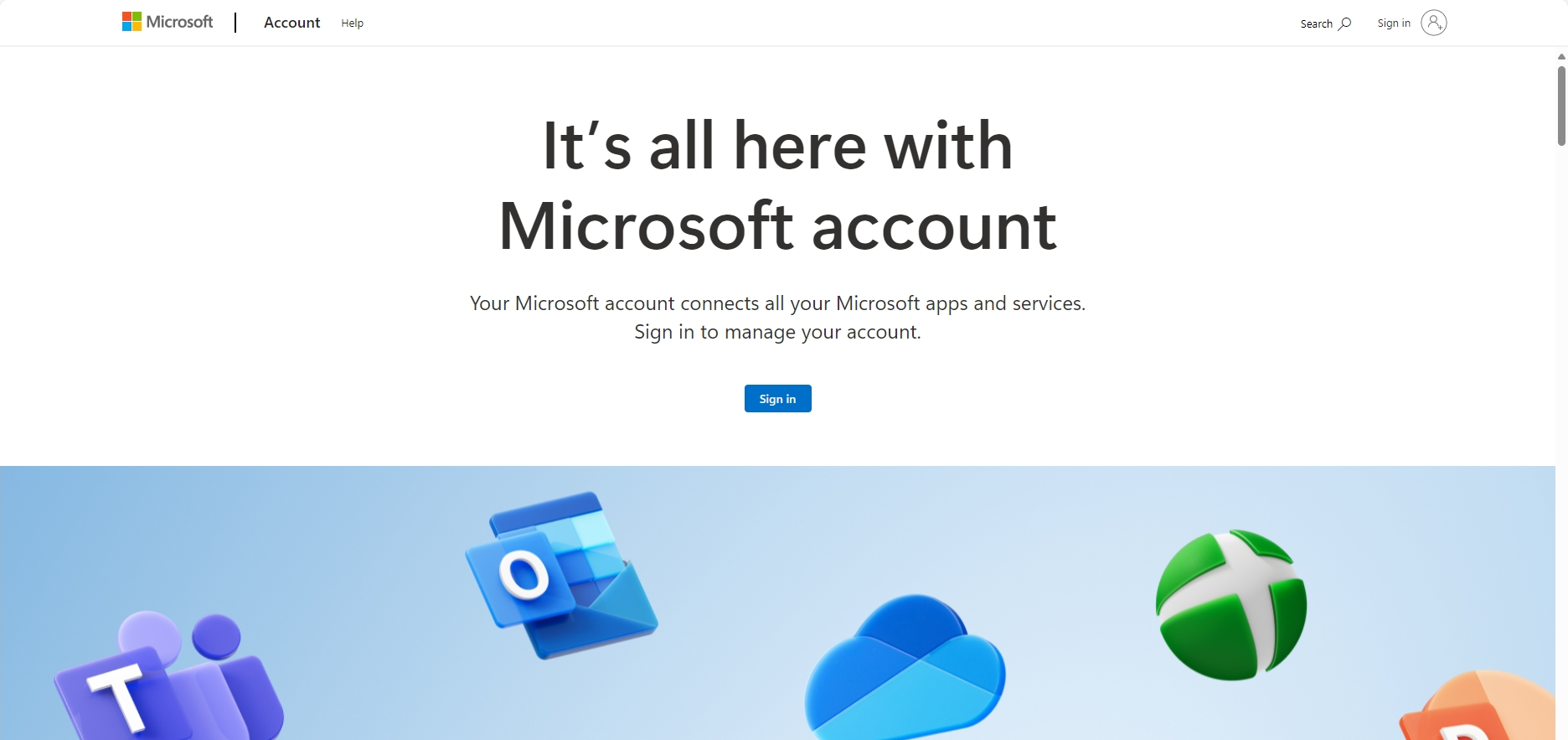
Begin by opening your browser and navigating to the Microsoft Account login page. Enter your credentials and click the “Sign In” button. Once logged in, the system will direct you to your personal dashboard.
If you don’t have a Microsoft account, then you probably don’t have a Microsoft 365 subscription, because Microsoft 365 is a subscription-based service that requires annual payment and is tied to your Microsoft account.
You can sign up for a Microsoft account and then purchase a Microsoft 365 subscription. Recommended purchase channels:
Amazon: Microsoft 365 Family, Microsoft 365 Personal.
This is Microsoft’s official channel, with products in original prices.APSGO(highly recommended): Microsoft 365 Family/Personal
DIGITALYCHEE:
This is the reseller channel, with the prices at discount. About how to buy Microsoft 365 in affordable prices on DIGITALYCHEE, you can learn more by reading our previous posts:
Step 2: Navigate to the “Subscriptions” Section
Upon successfully logging in, pay careful attention to the navigation bar on the left of the page. In the menu below your avatar, you will find a “Subscriptions” tab.
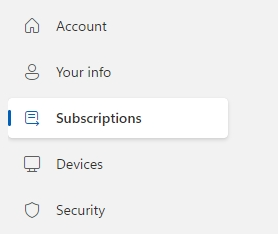
Click on it to be taken to a page dedicated to managing your subscription details. Here, you will find various services related to Microsoft, including Office 365, OneDrive, Xbox Live, and more. If you have a Microsoft 365 subscription, the relevant entry will appear here.
Step 3: Verify Your Microsoft 365 Subscription Status
If you do indeed have a Microsoft 365 subscription, the system will clearly display the type of subscription, its expiration date, and the features that are currently activated. Different plans may be listed, such as “Family,” “Personal,” or “Business.” If no such information appears, it indicates that you either do not have a subscription or that it has expired.
Step 4: Check Your Microsoft 365 Applications
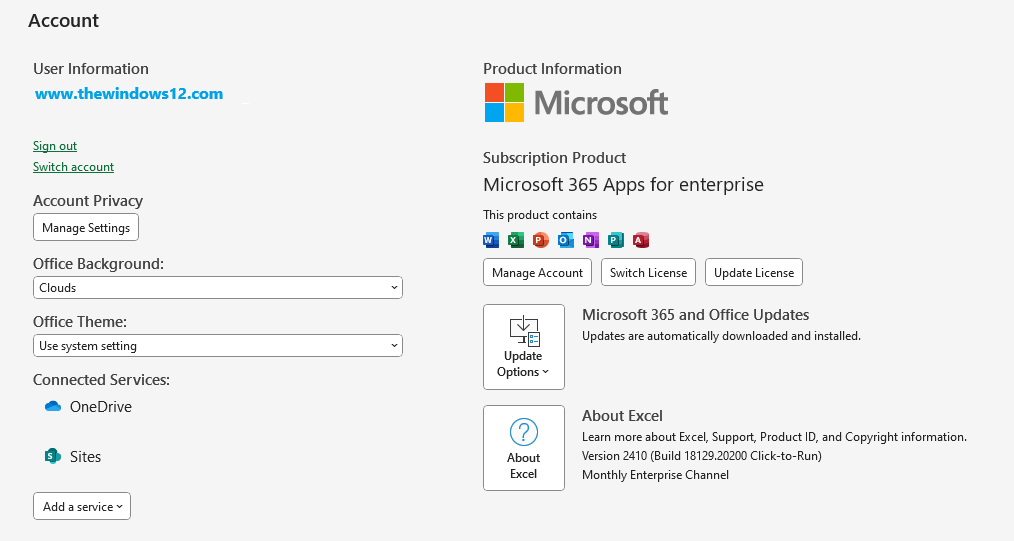
Next, open any Office application (such as Word or Excel). If your Microsoft 365 subscription is valid, the application will automatically indicate an “Activated” status and notify you that the latest features are available for use. Users without a subscription will encounter a screen prompting them to purchase or renew their subscription.
Step 5: Confirm Through Order History
If you are still uncertain, return to your Microsoft account page and click on the “Order history” section. This area will list all your payment history and subscription details. If Microsoft 365 is active, you will see corresponding billing records.

Conclusion
By following these steps, have you successfully identified the status of your Microsoft 365 subscription?
If you have already subscribed, congratulations! You can now fully enjoy the comprehensive cloud services and cutting-edge features Microsoft 365 has to offer. If you haven’t, there’s no need to worry—we’ve told you the best way to buy a Microsoft 365 subscription in Step 1, don’t miss the chance to get one in the most affordable price.
