Getting error 0x80071772 when trying to install Ubuntu or any WSL distro from the Microsoft Store? You’re not alone — this is one of the most common WSL installation errors, and the fix takes under 5 minutes.
Quick fix: Error 0x80071772 occurs because WSL packages can only be installed on the C drive. If your Windows “New apps will save to” setting points to another drive, WSL installation will fail. Change it to C drive, reinstall, and you’re done.
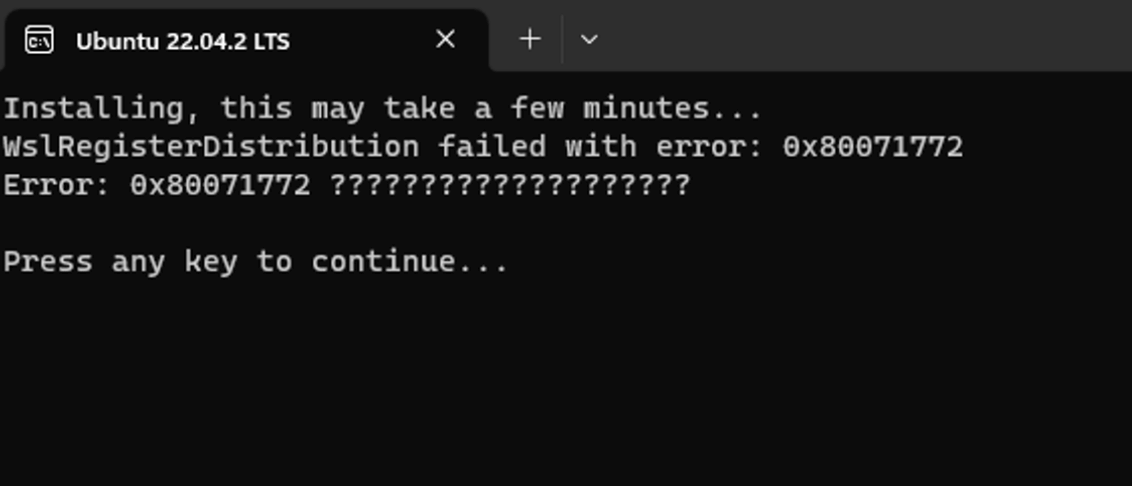
Why Error 0x80071772 Happens
This error occurs because the software packages of the WSL subsystem can only be installed on the C drive. However, you have set up the system so that new applications are installed on other drives (such as the D drive or the E drive). As a result, the installation failed.
WSL is a “system-level program”, and it is installed on the C drive to ensure performance, permissions and compatibility. Although it may sound not very flexible, this is a security design adopted by Microsoft at present to reduce errors.
How to Fix Error 0x80071772 (5 Steps)
Having understood the cause of the error, the solution will be quite straightforward:
Uninstall the failed-to-install WSL applications that have been installed (such as Ubuntu 22.04).
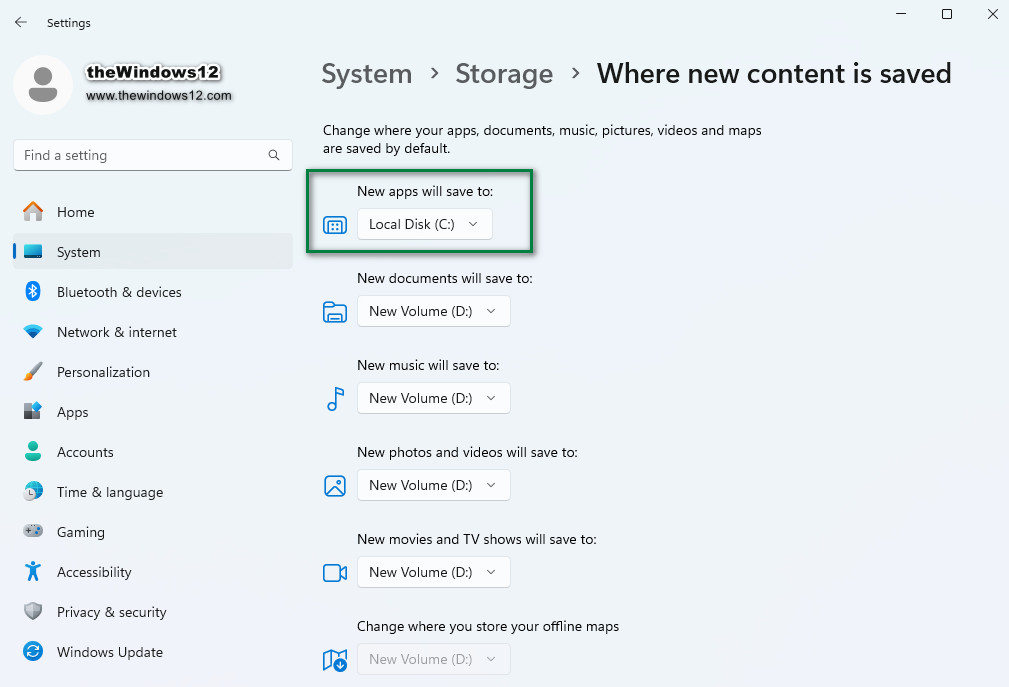
Open Windows Settings, then go to System > Storage > Advanced storage settings > Where new content is saved.
Change the item New applications will be saved to to C drive.
Then reinstall the WSL application, and it will be successfully installed.
After the installation is completed, if necessary, you can change the save location to another partition as well.
Related WSL Errors
If you’re running into other WSL issues, these guides might help:
“localhost proxy configuration detected but not mirrored to WSL” — This happens when you have a proxy running on Windows that WSL can’t access. See our WSL proxy fix guide for the complete solution.
“An HTTP proxy change has been detected” — A newer WSL warning related to proxy detection. Check out our WSL HTTP proxy change fix for details.
“could not resolve proxy” in WSL — When WSL can’t reach the proxy server due to DNS or NAT isolation. See our WSL proxy resolution fix for the complete troubleshooting guide.
“mirrored networking mode is not supported” — Your Windows or WSL version is too old for mirrored mode. Our mirrored networking fix walks you through the upgrade process.
FAQ
Q: Can I install WSL on a drive other than C?
A: Not directly from the Microsoft Store. The Store version of WSL distros (Ubuntu, Debian, etc.) must go to C drive. However, you can use wsl --import to install a distro to any drive after WSL itself is set up.
Q: Will changing the install path back to C drive affect my other apps? A: No. This setting only affects new installations. Apps already installed on other drives will stay where they are.
Q: I changed to C drive but still get 0x80071772. What else can I try?
A: Make sure you’ve uninstalled the failed WSL distro first (Step 1). Also try running wsl --unregister <DistroName> from an elevated command prompt, then reinstall.
Q: What does error 0x80071772 actually mean? A: The error code translates to “The specified file is encrypted and the user does not have the ability to decrypt it.” In the WSL context, it’s essentially saying Windows can’t place the WSL package on a non-C drive location.
Reference:
