Outlook Can't Send or Receive Email? Check This Before You Repair Your Profile
The November 12 Microsoft outage left Outlook stuck on Disconnected for thousands. How to tell a server failure from a broken profile, and what not to touch.

- Louis
- 10 min read
- Affiliate Disclosure
Microsoft’s Exchange Online went down on November 12, 2026, and the failure looks exactly like a broken Outlook profile. The mailbox stops updating, the status bar sits on Disconnected, and nothing you do on your own machine changes it.
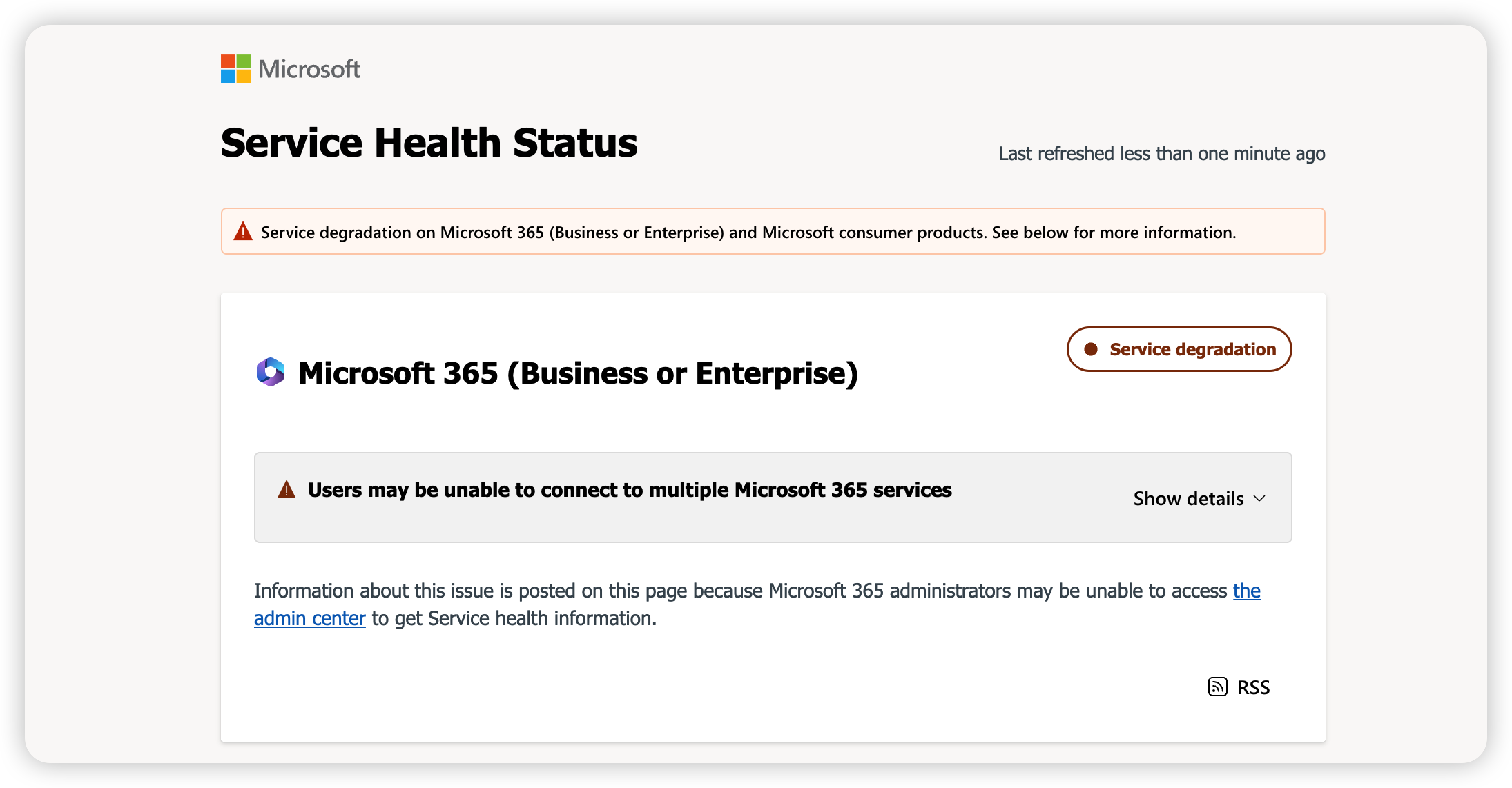
If you are reading this while it is still happening, do one thing before you touch anything else: open https://status.cloud.microsoft and look for a Service degradation card that names Exchange Online. On a work or school account the same incident is tracked as EX1550543 in the Microsoft 365 admin center.
This check works the same for classic Outlook, the new Outlook, Outlook on the web and the mobile apps. They all read the same mailbox service, and they all fail the same way when that service is unhealthy.
What the status bar is telling you
Classic Outlook puts the answer in a line of text at the bottom of the window that most people never read. Three messages cover almost every case.
| Status bar text | What it means | Where the fault is |
|---|---|---|
| Disconnected | Outlook is open but has no connection to the mailbox server | Server, network, or profile |
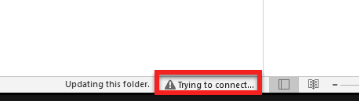
| Trying to connect… | Outlook is retrying the connection and failing | Almost always server-side |
| Working Offline | You (or a rule) switched Outlook out of connected mode | Your machine |
The three are easy to confuse because the symptom is identical: no new mail. But Working Offline is the only one you can fix in two seconds, and it is also the only one that is not a fault at all. Click Send/Receive on the ribbon and check whether Work Offline is highlighted. If it is, click it once to turn it off.
If the bar says Disconnected or keeps cycling through Trying to connect…, stop tweaking and go to the next section.
First: is Microsoft down? A 60-second check
There are two status pages, and picking the wrong one wastes the minute. Which one you get depends on whether you are on a paid subscription or a free Outlook.com account — the two are not always obvious from the app.
For a work or school account: ask your admin to check Microsoft 365 admin center → Health → Service health, and search for EX1550543. During this incident the admin center itself was intermittently unreachable, which is why Microsoft posted the running update on its public page instead.
For a personal Outlook.com account: go to https://status.cloud.microsoft and expand the Microsoft consumer products section. That is where Microsoft publishes status for Outlook.com, OneDrive and the other consumer services. The site’s own header explains the reason it exists: administrators may be unable to reach the admin center, so the status is duplicated in public.
Two things worth knowing about that page, both of which catch people out.
The first is that the old advice circulating online to visit status.live.com no longer works. That address now redirects to the Outlook sign-in page. If mail is down, the sign-in page will still load and look healthy, and you will conclude the outage is your problem.
The second is that the consumer page can contradict itself. During this incident the Microsoft 365 (Consumer) card reported a service degradation that explicitly listed Outlook.com, OneDrive, To Do, Teams and OneNote, while the individual Outlook.com workload entry at the same moment showed Operational. When the two disagree, trust the card that names the affected services, not the green dot next to a single product name.
In simpler terms: a green Outlook.com badge does not mean mail is flowing. It means the probe Microsoft uses for that one entry came back.
What Microsoft says is happening
The incident started around 18:00 UTC on November 12 — just after 1pm US Eastern, which put it in the middle of the North American working day.
| Time (UTC) | What happened |
|---|---|
| Nov 12, ~18:00 | Exchange Online connectivity failures begin; Outlook outage reports on Downdetector pass 130,000 at peak, according to AP and Reuters reporting |
| Nov 12, ~21:00 | Microsoft validates an alternative method of checking server health, and a subset of affected servers return to service |
| Nov 12, ~23:00 | Microsoft reports “limited recovery” in some regions and starts shifting traffic to alternative pathways |
| Nov 13, 00:08 | Microsoft says returned servers become unresponsive again once they start taking traffic; it begins limiting certain traffic types and rebuilding some servers with a previous software configuration |
Microsoft’s own wording on the current state is unusually blunt about the setback, and worth quoting exactly because it explains why the fix keeps appearing to work and then failing:
While the servers we’ve returned to service initially remain healthy, we’ve observed that they can become unresponsive again once they begin receiving traffic. We’re analyzing diagnostic data from these servers with our networking and platform experts to determine what’s triggering this behavior.
The upstream cause is not settled. Microsoft has said it found no recent change that correlates with the start of the impact, that the failed health checks may originate from a component responsible for processing server health, and that it paused all deployments and configuration changes while it reviews recent ones. It has not attributed the incident to an attack.
The blast radius went well beyond mail. Microsoft’s public status entry lists Exchange Online, Teams, SharePoint Online, Microsoft 365 Copilot, Defender XDR, Defender for Office 365, Planner, To Do, Intune, Purview, Power BI report export, the Microsoft 365 Apps Admin Center, Universal Print and Windows 365 Cloud PCs. OpenAI and Anthropic both reported trouble with their Microsoft 365 connectors because the upstream service was unavailable.
If it is the outage: three things to do, three to leave alone
While the incident is open, your options are narrower than they feel.
Do restart Outlook once, then leave it running. Close it completely and reopen. A client that was disconnected mid-session does not always reconnect on its own, and sending a fresh connection request is harmless.
Do use Outlook on the web for anything urgent. It is the same mailbox, not a copy of it. If the web session can reach the service while your desktop client cannot, you can still send — and if neither works, you have your answer about where the fault is.
Do write down what you were waiting for. Message timestamps and senders are the evidence you will need if a message genuinely never arrives after the incident closes.
Now the part most guides skip, because it is the part that costs you time:
Do not create a new Outlook profile. Removing and re-adding the account does nothing to a server-side outage, and when capacity returns Outlook has to download the whole mailbox again. Microsoft’s own recovery note says users should expect a gradual return as clients reconnect — a fresh profile turns a two-minute reconnection into an hour of synchronisation.
Do not run the Inbox Repair tool or delete your .ost file. The data file is not the problem, and the rebuild is expensive on a large mailbox.
Do not keep changing your password. A password prompt during an outage looks like a credential problem and is not one. If you are on a work account, repeated failed attempts can lock the account on top of the outage.
If Microsoft is up: where to look on your side
Only start here once the status page is clean and the incident is closed. Work down the list and stop at the first step that changes the symptom.
- Turn off Work Offline. Send/Receive tab, click Work Offline if it is highlighted.
- Force a send/receive.
F9, or Send/Receive All Folders. Watch the status bar for an error instead of just waiting. - Answer the credential prompt properly. If Outlook asks for a password it never accepts, the cached credential is usually stale. Open Control Panel → Credential Manager → Windows Credentials and remove entries beginning with
MicrosoftOffice16_andadal, then restart Outlook and sign in fresh. - Start Outlook in safe mode. Run
outlook.exe /safe. If mail flows there, an add-in is the culprit — remove the most recently installed one rather than all of them. - Create a new profile. Control Panel → Mail (Microsoft Outlook) → Show Profiles → Add. This is the step that costs an hour, which is why it sits here and not at the top.
- Repair the data file. Run
scanpst.exefrom your Office installation folder against the.pstor.ostfile. Outlook normally refuses to start at all before this is the right answer.
If your mailbox is full, none of the above will help and mail stops arriving cleanly with no error: Microsoft blocks send and receive entirely when the mailbox or OneDrive storage is at its limit. The storage rules changed in October 2026, so a Family plan that used to have headroom per person now shares one pool and can fill up without warning.
One more split worth making before you spend time on this: a login failure and an activation failure look similar and are unrelated. If Office is asking you to activate rather than to sign in, start with the activation fix instead.
Why your two-factor code never arrived
During this incident some users could not sign in to anything, because their second factor was a code sent to the mailbox that was down. If that is you, the fix is a different second factor, not a different password.
Use an authenticator app or a stored backup code rather than an emailed code. Do not hammer the resend button: verification codes are rate-limited, and a burst of attempts can delay the next one by several minutes — which feels like the outage getting worse when it is not.
If you have no second method configured at all, this is the argument for setting one up once mail is back, and it is also why removing your Microsoft account password entirely is now a real option rather than an experiment.
After the outage, mail still arrives slowly
Recovery at Microsoft’s end does not mean instant recovery at yours. Three things happen after the incident closes: your client has to notice the service is back, it has to work through whatever queued on the server while you were disconnected, and in cached mode it has to write that backlog to disk.
The visible symptom is a mailbox that loads, then trickles, then suddenly shows a day of mail at once. That is normal. Leave Outlook open. The one thing that genuinely helps is F9 on the Inbox once the status bar reads Connected.
Common questions
Is Outlook down right now, or is it just me? Check status.cloud.microsoft first. If the Microsoft 365 card shows a degradation naming Exchange Online, it is not you. If it is clean, run the local checklist above in order.
Should I remove and re-add my account during an outage? No. It cannot fix a server-side problem and it forces a full re-download once the service returns.
Microsoft says it’s fixed but my mail is late — is that normal? Yes. Reconnection and backlog sync lag behind the official all-clear, often by hours on a large mailbox.
Does this affect free Outlook.com accounts? Yes, through the same Exchange Online infrastructure, and Microsoft’s consumer status card listed Outlook.com among the affected services. Work accounts get an incident number and an admin console; personal accounts only get the public page, so the status check matters more, not less.
The short version
Before repairing anything, check status.cloud.microsoft and look for Exchange Online in a degradation notice — for work accounts, that is incident EX1550543 in the admin center. If the incident is open, restart Outlook once, use the web app for anything urgent, and leave your profile, your .ost file and your password alone. A new profile during an outage just makes the recovery download longer. Start the local fixes — Work Offline, F9, stale credentials, safe mode — only after Microsoft’s status page is clean.
