Sometimes the column width of an Excel cell is limited, and the content in a cell is relatively long or needs to be described in points. In this case, you need to wrap text within the cell. For more Excel tips, see how to beautify tables instantly with Ctrl+T and quickly sum with Alt+=.
Pressing the Enter key will automatically jump to the next cell, and Shift+Enter has the same effect. So how can you wrap text within a cell?
Here I’ll show you how to manually wrap text, or set it to wrap automatically.
Wrap manually
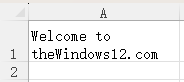
Unlike the commonly used line break shortcuts Enter and Shift+Enter in other software, the shortcut for inserting a line break within a cell in Excel is Alt+Enter.
Follow these steps:
- Double-click the cell where you want to add a line break.
- Click at the position where you want to break the line.
- Press
Alt + Enterto insert a line break within the cell.
Wrap automatically
If you need to wrap text in lots of cells, setting it to wrap automatically would be a better choice. And we have 2 methods to achieve this.
Method 1
- Select the cell or range of cells where you want to enable text wrapping.
- Go to the “Home” tab on the Ribbon.
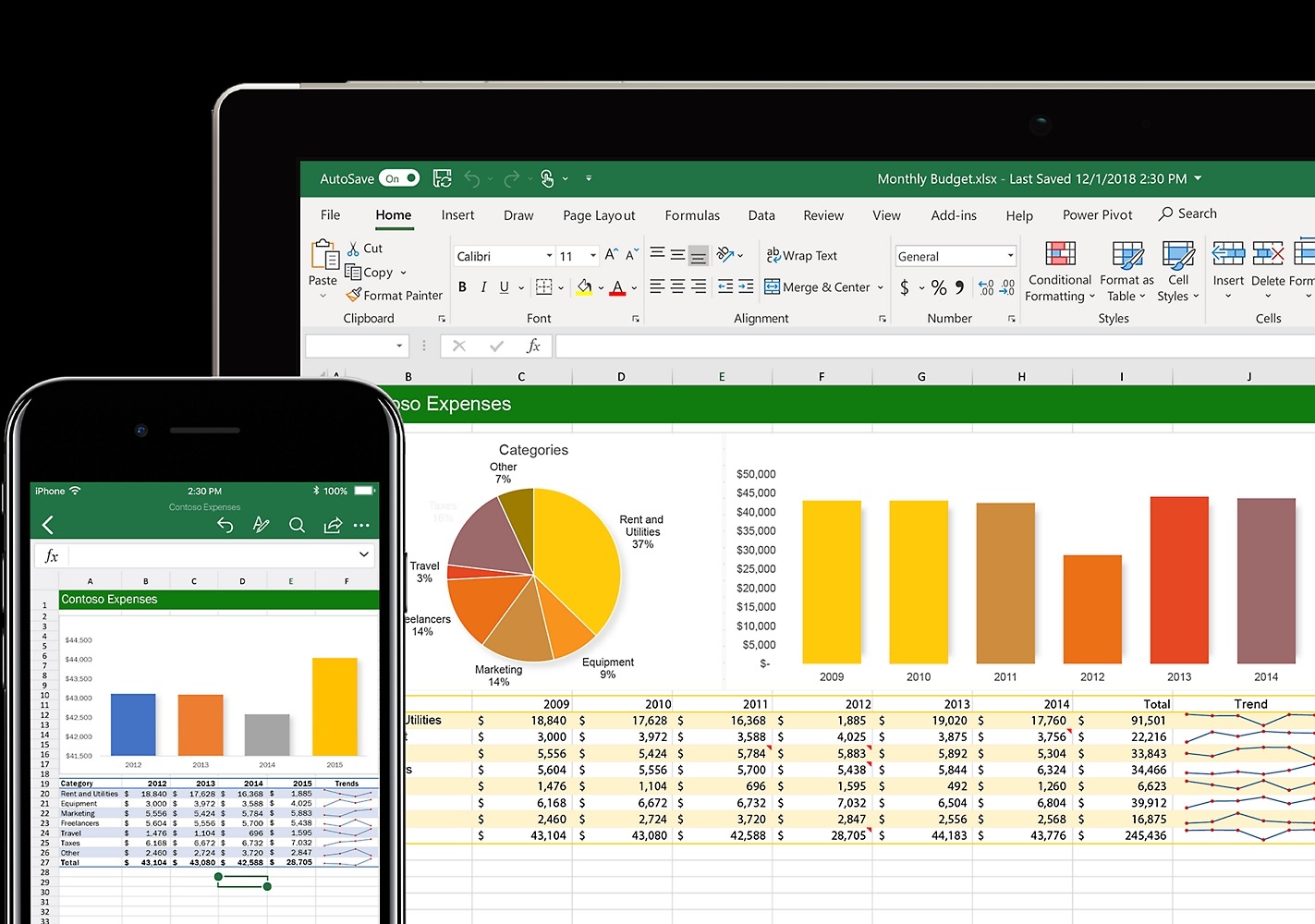
- In the “Alignment” group, click on the “Wrap Text” button.
Method 2
- Right-click the cell(s) and select “Format Cells”.
- Go to “Alignment” tab.
- Check “Wrap text”.
- Click “OK”.
This will automatically adjust the cell to display the text on multiple lines based on the cell’s width. Now your table should look nicer and neater.
