How to Remove Copilot Button from Windows 11 Taskbar
After updating to Windows 11 23H2, many users noticed that the Copilot button appeared on the Windows taskbar. Here's the way to remove it.

- Louis
- 1 min read
- Affiliate Disclosure

After updating to Windows 11 23H2, many users noticed that the Copilot button appeared on the Windows taskbar.
Not to mention that the Copilot capabilities integrated on the current system are no different from the web version, there is no shortage of AI chat apps on the market today.
Some might want to have the button removed. And here goes the method:
- Go to Settings, click Personalization, and select Taskbar.
- On the Taskbar settings page, turn off the Copilot option.
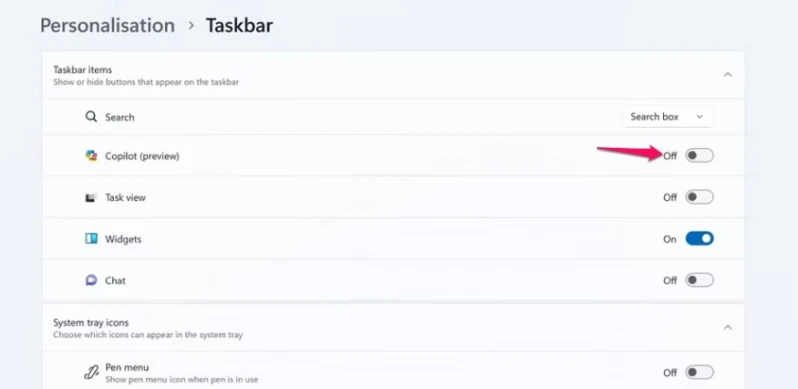
This method simply removes the Copilot button from the taskbar, it does not turn it off and uninstall.
There are also tutorials online for turning off Copilot via group policies and registries, but given the interdependence of system components, turning off or uninstalling can easily cause system instability, so only removing button is recommended.