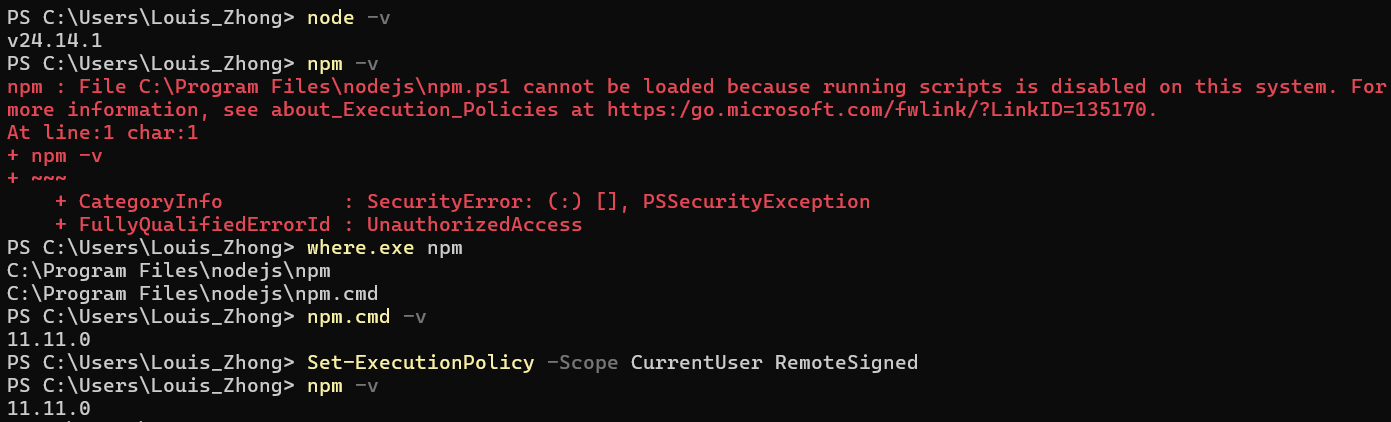
You installed Node.js with the Windows installer, and sucessufully ran node -v in your Terminal. However, when you try to run npm -v, you get the error:
npm : File C:\Program Files\nodejs\npm.ps1 cannot be loaded because running scripts is disabled on this system. For more information, see about_Execution_Policies at https:/go.microsoft.com/fwlink/?LinkID=135170.
It doesn’t mean that installation failed. You can try these approaches to check your installation:
Run
npm.cmd -vinstad ofnpm -vin your Terminal.Press Windows key + R, type
cmdand press Enter to run a CMD terminal instead of Powershell, and runnpm -vin it.
If you successfully get the version number, you have successfully installed Node.js. What you need to do is to enable running scripts in your Powershell.
The fix is simple: open your Terminal (in Powershell environment by default), and run Set-ExecutionPolicy -Scope CurrentUser RemoteSigned.
This command doesn’t need the Administrator privilege, and it will only affect your current user.
Once it is done, you can run npm -v again in your Terminal, and you should see the version number.