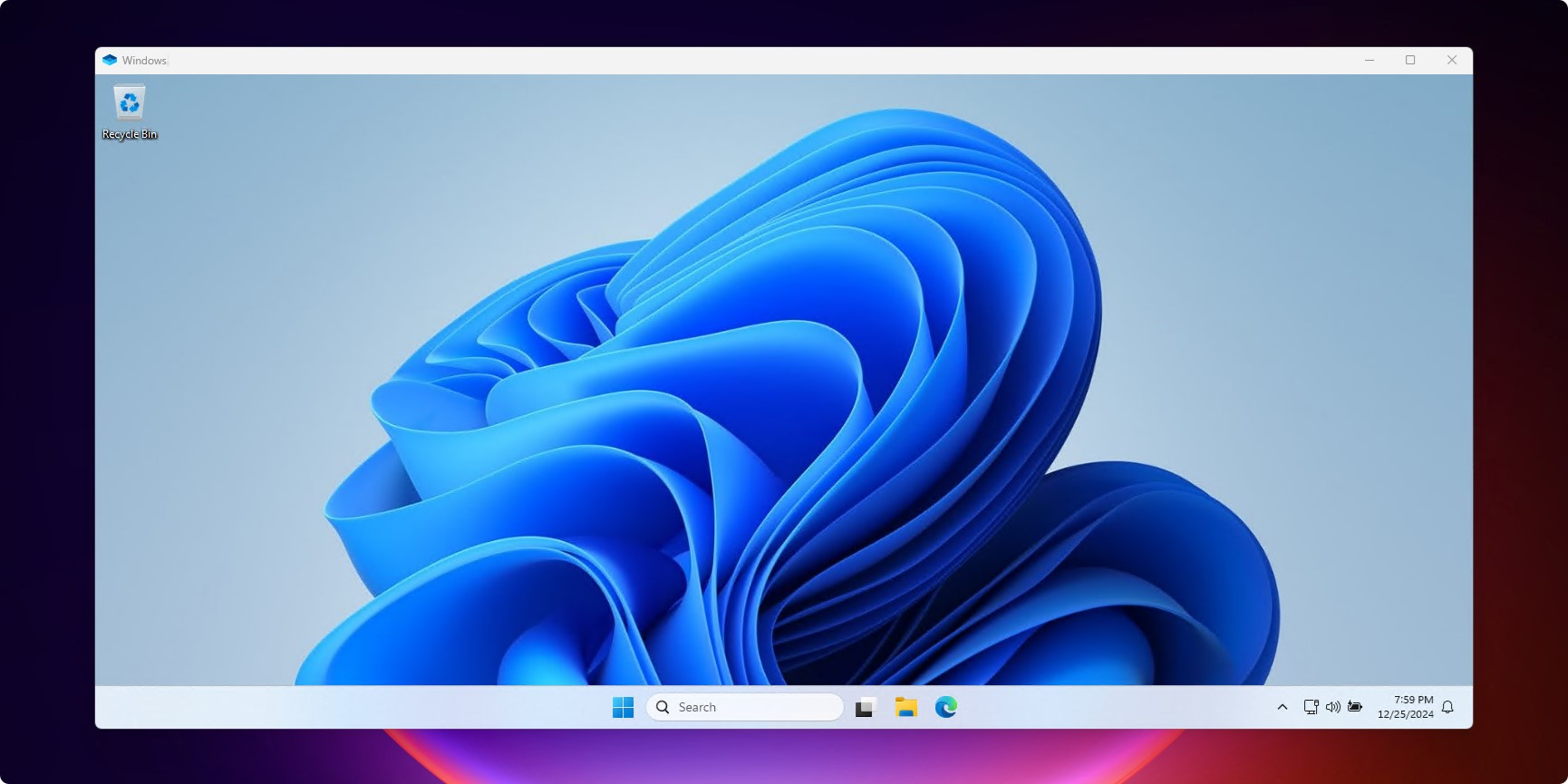
Our computers are becoming more and more powerful. Even lots of personal computers were equipped with high-end CPU, GPU, RAM and SSD. Have you ever thought that, their powerful computing power is idle most of the time?
Suppose your family shares a Windows computer, which can only be used by one person at a time. Is it possible to allow your family members to use the computer at the same time? The answer is yes, and this article will tell you how to do it.
Our solution is to remove the user restrictions of Windows RDP. Of course, I need to explain the restrictions clearly first.
Understanding Windows RDP
Remote Desktop Protocol (RDP) is a proprietary protocol developed by Microsoft, allowing users to remotely connect to another computer over a network. It’s like teleporting into another machine—you get to interact with the remote desktop as if you were sitting right in front of it, no matter you are using a phone, a tablet or another computer running Windows, Linux or MacOS.
But there is one thing you should know that, not all Windows editions support RDP, which means only select Windows editions can be remotely controlled. Windows Pro, Enterprise, and Server editions fully support Remote Desktop connections, while the Home edition does not. I suggest you, as a home user, upgrade Windows Home to Windows Pro befor make use of Windows RDP. It’s said that RDPWrap and the main role of this post, SuperRDP, can enable Windows Remote Desktop feature on Home edition.
What’s more, only Windows Server allows concurrent user sessions by design. Why? Microsoft wants you to rely on more expensive enterprise-grade solutions for that. Most of us use Windows desktop editions rather than Windows Server, that’s why I write this post telling you how to unlock the restriction.
Removing the limitation with SuperRDP
SuperRDP is an open-source application base on the RDPWrap project by stascorp. It has more than 2.3k stars on Github, which indicates that it’s popular and widely used by users.
To use SuperRDP, you should go to its Releases page, download the latest release.
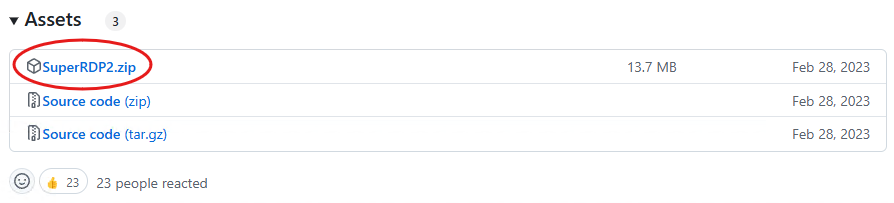
Because this program modifies system files, thus your antivirus software may indicate risk, you can ignore that and keep the file.
Once downloaded, extract all files to a local directory. You’ll see follwing files in the folder:
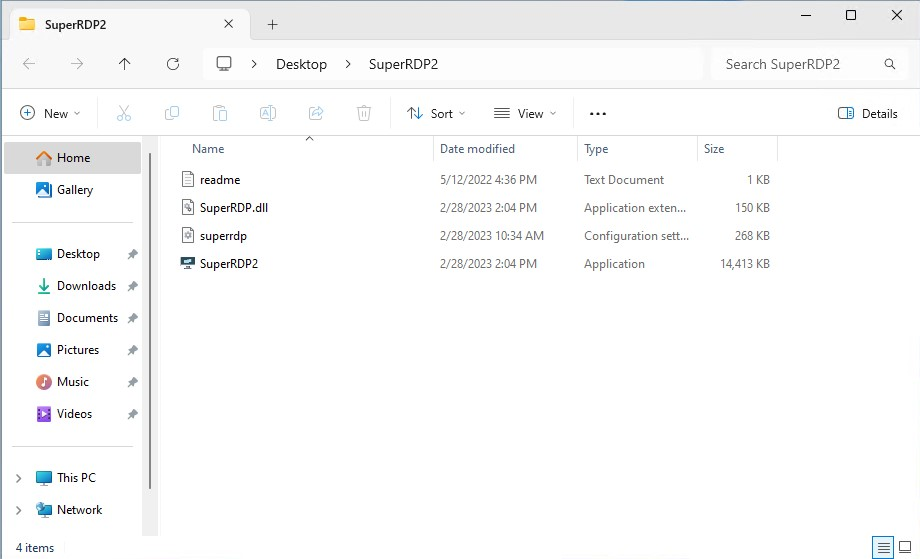
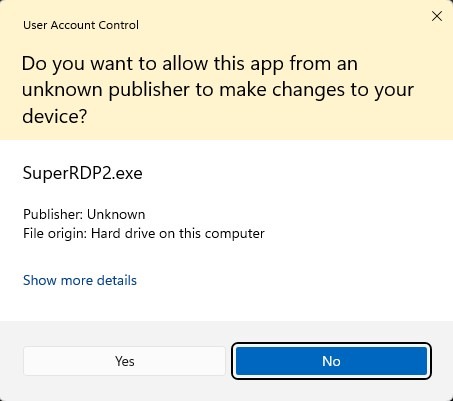
Double click on SuperRDP2.exe to run the application, click Yes in UAC(User Account Control) popup, so that it can modify system files.
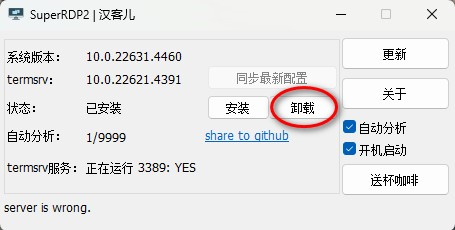
You may find the interface is full of Chinese characters. This is because the project developer is Chinese and therefore has not been translated into English. You can follow the steps I marked.
First, check the two boxes I markded ①, this will enable the program analyse Windows RDP automatically, and starts related services automaticall while Windows starts.
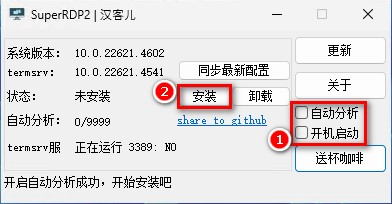
Second, click on the button I markd ②, which will install the services to your system. When the status changs to YES, the services have been installed sucessfully, and the user restriction has been removed.
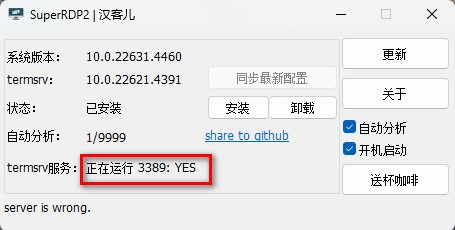
Now you can try to remotely connect to this PC with another account, current account should not be logged out, and you can operate in both accounts simultaneously.
FAQ
What if antivirus software blocks the application?
It’s normal that an antivirus software kills a risky file like this, because modifing system files is what most malware and virus does. The only soluton is adding SuperRDP’s path and files to whitelist of antivirus software to allow it run on your system.
SuperRDP is open source software on Github and has been used by a large number of users, so it is relatively trustworthy. You need to weigh whether to use it in the end.
What if Windows RDP stops working after using SuperRDP?
This is because services of SuperRDP has been stop due to system update or other reasons. The solution is to run SuperRDP and install the services again. It’s recommended to check the two boxes as I marked ① in the picture above, to enable auto analysis and auto start, which should decrease the issue.
How to restore default Windows RDP?
If you don’t need concurrent sessions any more, you can uninstall SuperRDP services by clicking on the button I marked in the screenshot below: