Windows Defender is a built-in antivirus software in Windows. It is a part of the Windows operating system and is designed to protect the system from malware, viruses, and other malicious software. However, sometimes you may need to disable Windows Defender for various reasons, such as reducing resource consumption in development environments, testing system performance under different security configurations, or for any other reason. For context on how third-party security software can go wrong, see our analysis of the CrowdStrike incident that caused millions of blue screens.
Here is an even funnier way to disable Windows Defender(through WSC api) using the project named defendnot, where you don’t need to install any other antivirus software.
How It Works
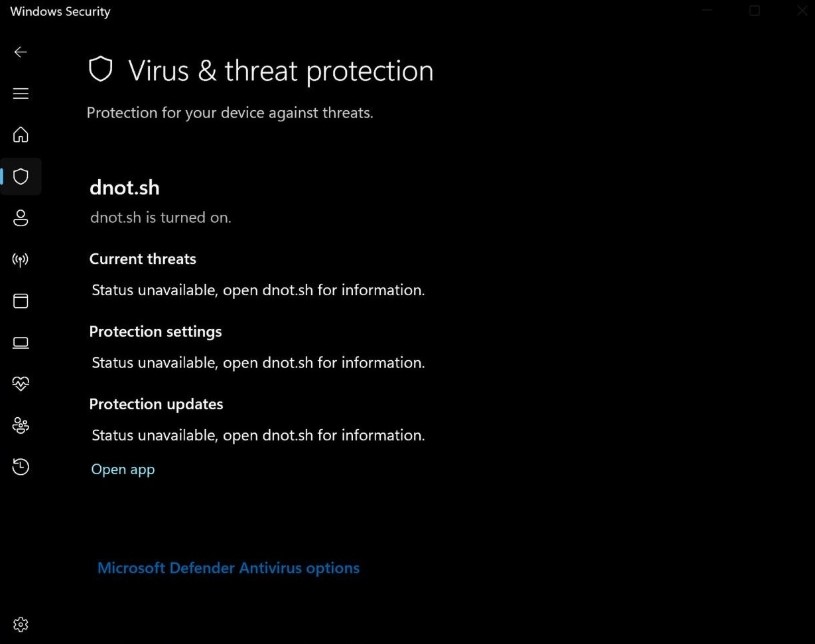
defendnot pretends to be an antivirus software, thus tricking WSC(Windows Security Center) into disabling Windows Defender.
There was a project called no-defender, which used thirdparty code provided by other AVs to register itself in the WSC. Because of this, no-defender was DMCA’d by some company, and all the releases, sources and everything else was wiped off.
Taking another path, defendnot interacts with the WSC API directly, therefore it does not have the same legal risks as no-defender.
How to Use
It’s really easy to use defendnot, but there are some limitations.
Needs to stay on disk
To keep the AV registration persistent after reboot, defendnot adds itself to autorun. That means the binaries have to remain on your system for the Defender “disable” to stick.
No support for Windows Server
The Windows Security Center (WSC) service doesn’t exist on Windows Server editions, so defendnot won’t work there.
Defender Detection
Not surprisingly, Windows Defender really doesn’t like defendnot and will flag or remove it as
VirTool:Win64/Defnot.A. You’ll need to (temporarily) disable Defender’s real-time and tamper protection to install.
Open the powershell as administrator and execute any of these:
# Example 1: Basic installation
irm https://dnot.sh/ | iex

# Example 2: With custom AV name
& ([ScriptBlock]::Create((irm https://dnot.sh/))) --name "Custom AV name"

# Example 3: Without allocating console
& ([ScriptBlock]::Create((irm https://dnot.sh/))) --silent
Run basic installation command if you don’t have any special requirements. The default AV name is set to dnot.sh, use Example 2 code while modifying “Custom AV name” to your target name if you want to change it.
What if you want to disable defendnot one day? It’s also easy to achieve - just open the powershell as administrator and execute the command below:
& ([ScriptBlock]::Create((irm https://dnot.sh/))) --disable
Dos and Don’ts
Windows Defender is a critical security layer in Windows OS. It’s recommended to keep it enabled and use it as a primary protection in daily use cases, if you don’t have other antivirus installed.
Do use defendnot only when you need to disable Windows Defender for specific purposes, like testing or development. Don’t use it to facilitate malware infection or to bypass security measures.
