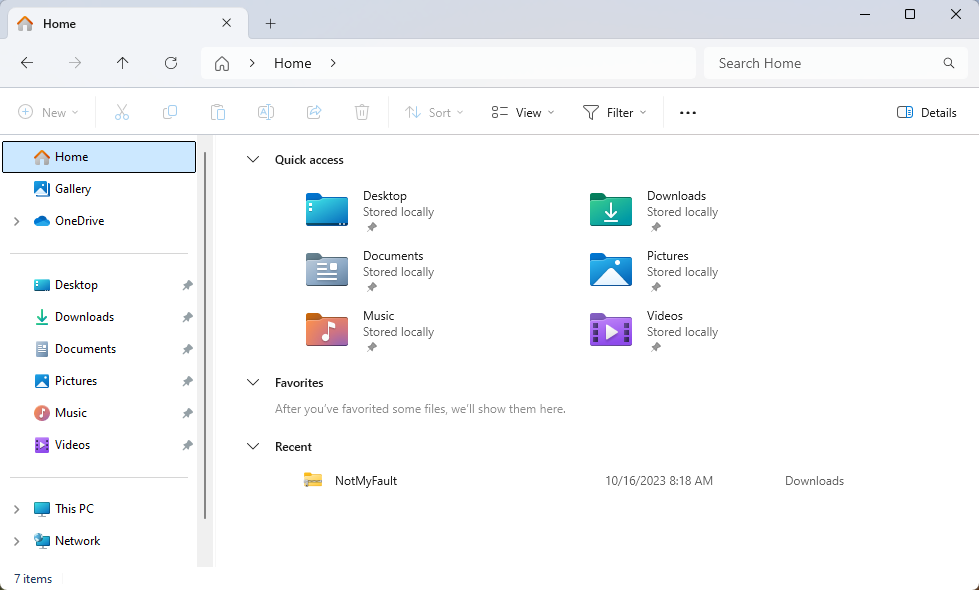
For some reason, there is no “This PC” icon on the Desktop of the newly installed Windows 11. If you are used to access the Explorer through “This PC”, we can manually add it to Desktop through the following easy steps.
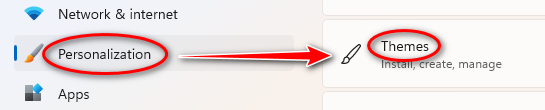
Step 1, right click on the Desktop, choose Personalize. Also, you can open Settings, and then find Personalization from the entry list on left.
Step 2, click into Themes.
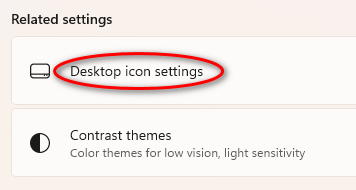
At the middle of this page, select Desktop icon settings.
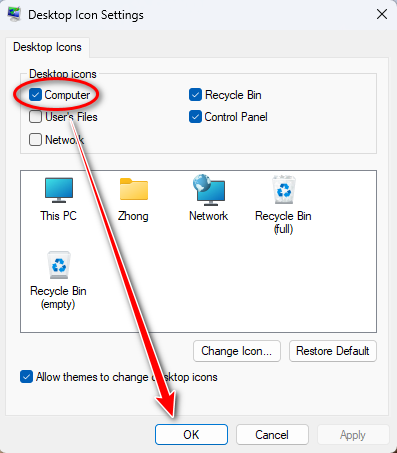
Step 3, check Computer in the pop-up window, and then click the OK button, and “This PC” will appear on the Desktop!
Is the method introduced in this article very simple? Welcome to follow us:
to read more practical tutorials.
