Get VMware Workstation/Fusion Pro Free Now
VMware Workstation Pro and Fusion Pro are Now Available Free for Personal Use. You can download them from Broadcom Support Portal. Let's show you how.

- Louis
- 4 min read
- Affiliate Disclosure

After being acquired by Broadcom, VMware Workstation Pro and Fusion Pro are now free for all users, including commercial, educational, and individual users. For analysis on why Broadcom made this move and its market impact, see our article on what VMware going free means. If you encounter network issues in VMware — especially when running a proxy like Clash Verge on the host — check our VMware no internet fix.
Fusion Pro and Workstation Pro have two license models now. Users will decide based on their use case whether a commercial license is required.
Both Workstation and Fusion can be downloaded from the Broadcom Support Portal. However, the design of VMware’s website is BAD, and Broadcom is even WORSE. It takes a significant amount of time before you can download successfully.
To save your time, I’d like to share my experience. Here we go.
Register a Broadcom Account
A Broadcom account is required to access the Support Portal.
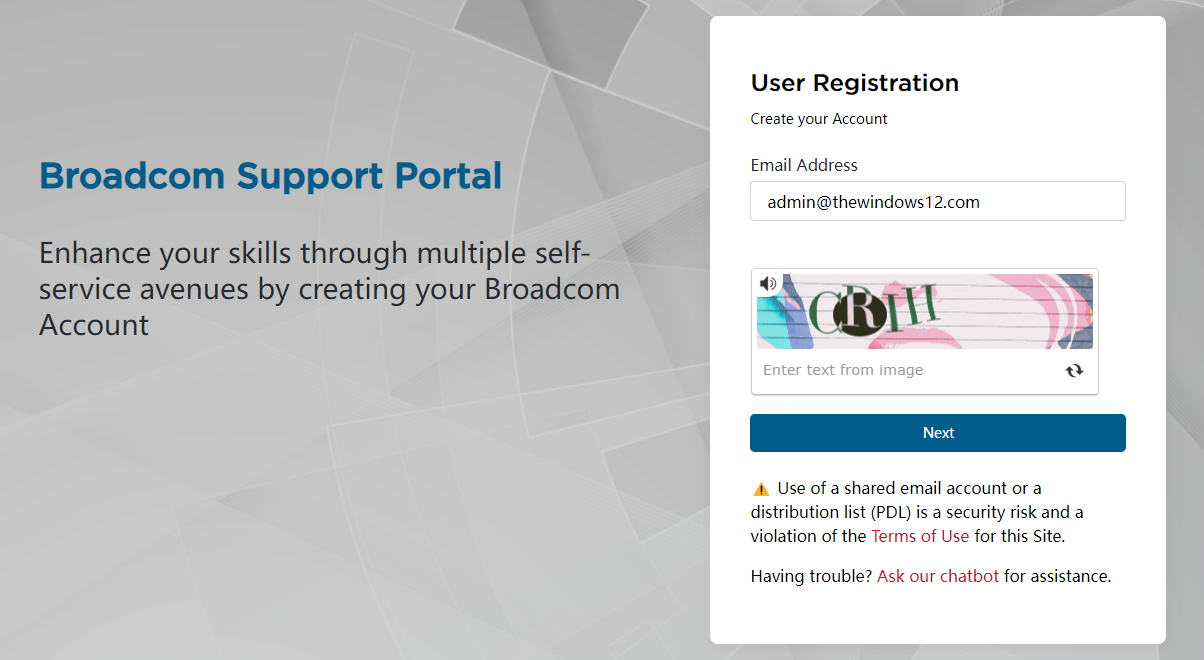
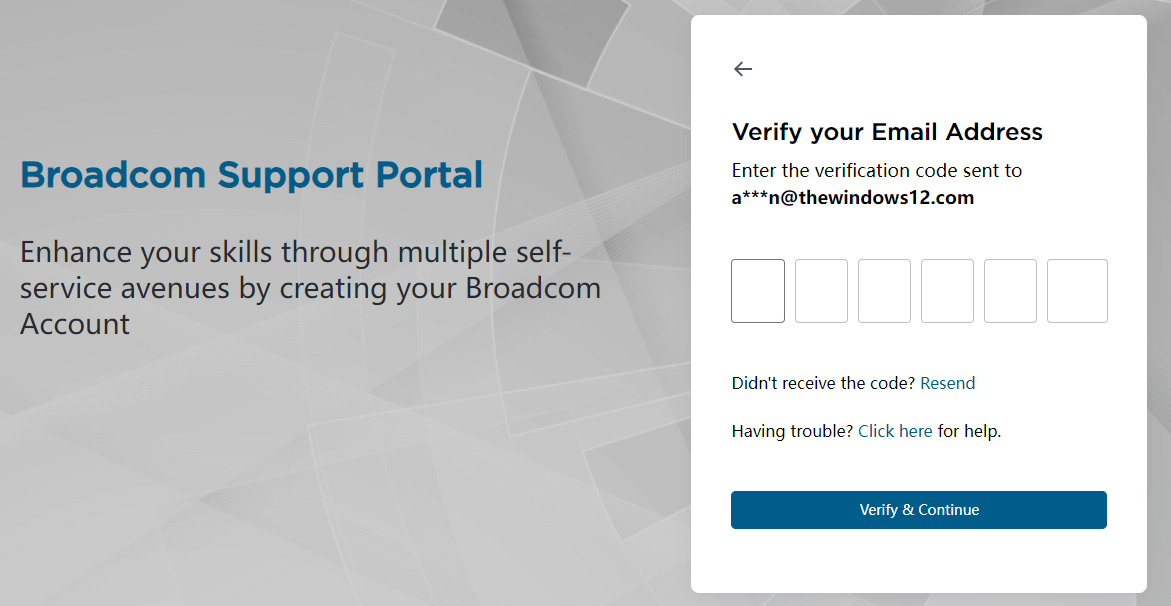
Input your email and click Next. You’ll receive a verification code in your mailbox, input the code to verify your Email address and continue.
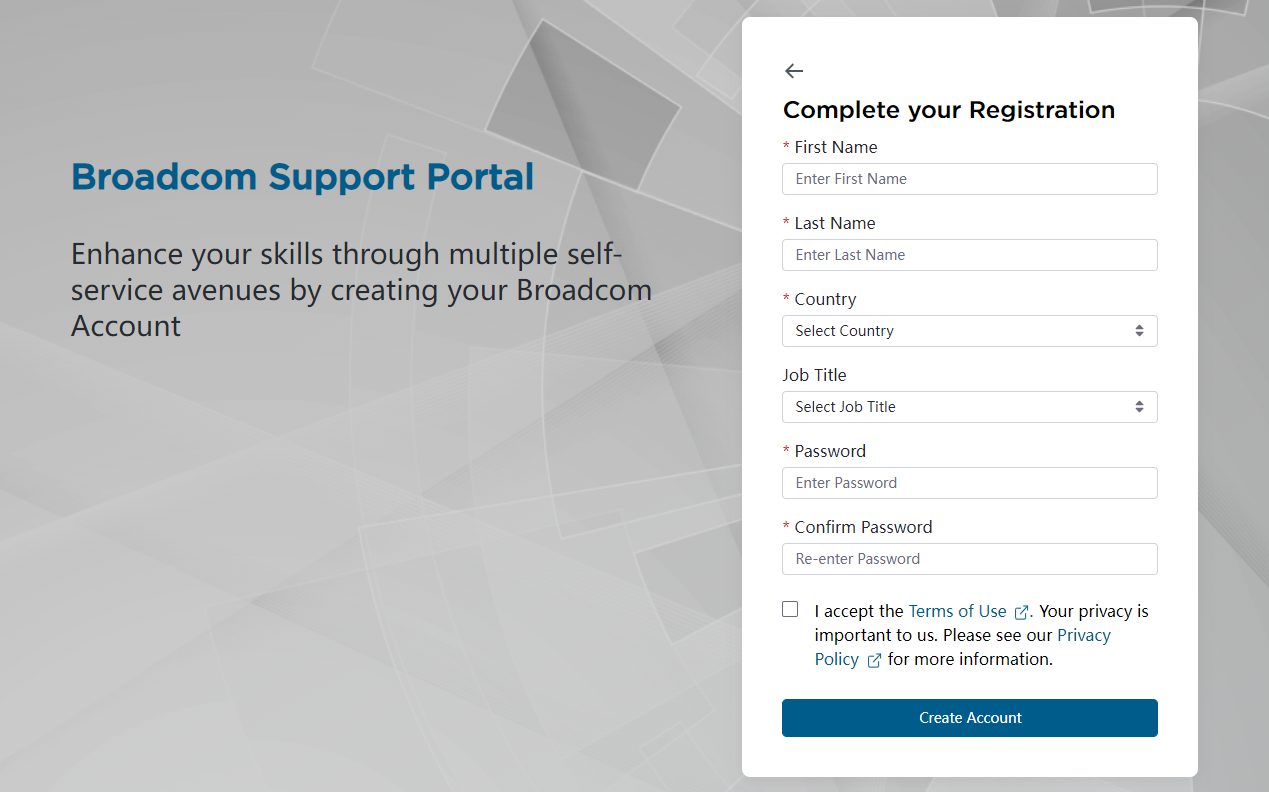
After that, you’re required to complete your account profile. Fill in the form, click Create Account once you’ve finished:
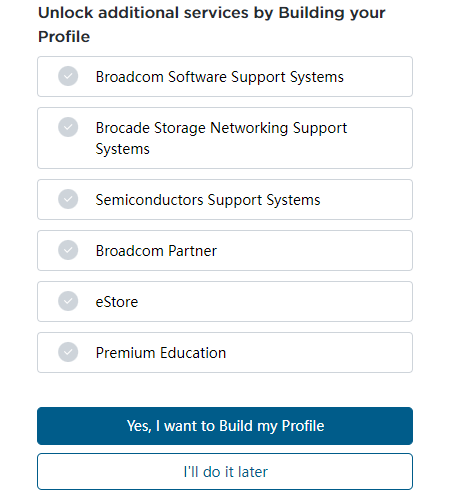
The page will ask you to unlock additional services by building your profile; you can just click on I’ll do it later to skip.
Congratulations, you’ve successfully created a Broadcom account. Let’s move to the next step.
Use Specific Links to Login
Don’t log in at once; this is very important.
As I’ve mentioned above, the design of Broadcom’s website is even WORSE than VMware’s. I tried many times to search products in the Support Portal but failed.
I highly recommend using the specific links below, which will redirect you to the product page after login.
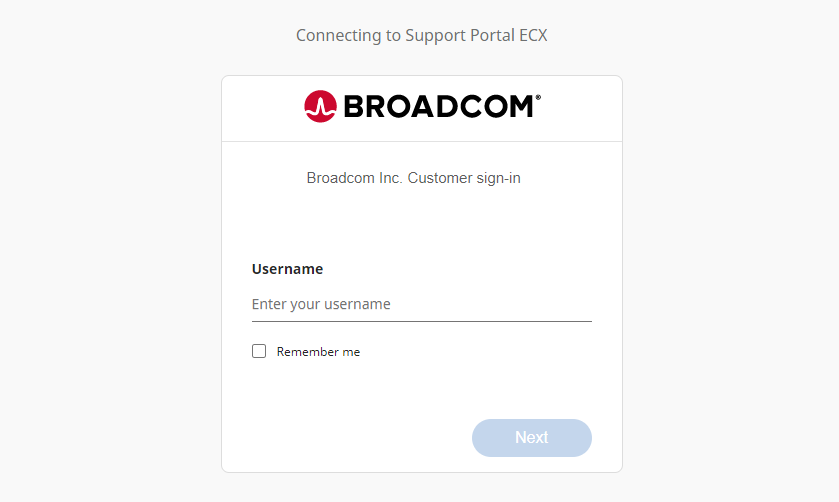
What’s my username? Forget it. Input your Email address which you used to register the Broadcom account.
Your browser will redirect many times because we used the specific links. The final page it will stay on is a product list. Workstation Pro, for instance, has different versions; we will choose one based on the target platform (OS) and whether it’s for Personal Use.
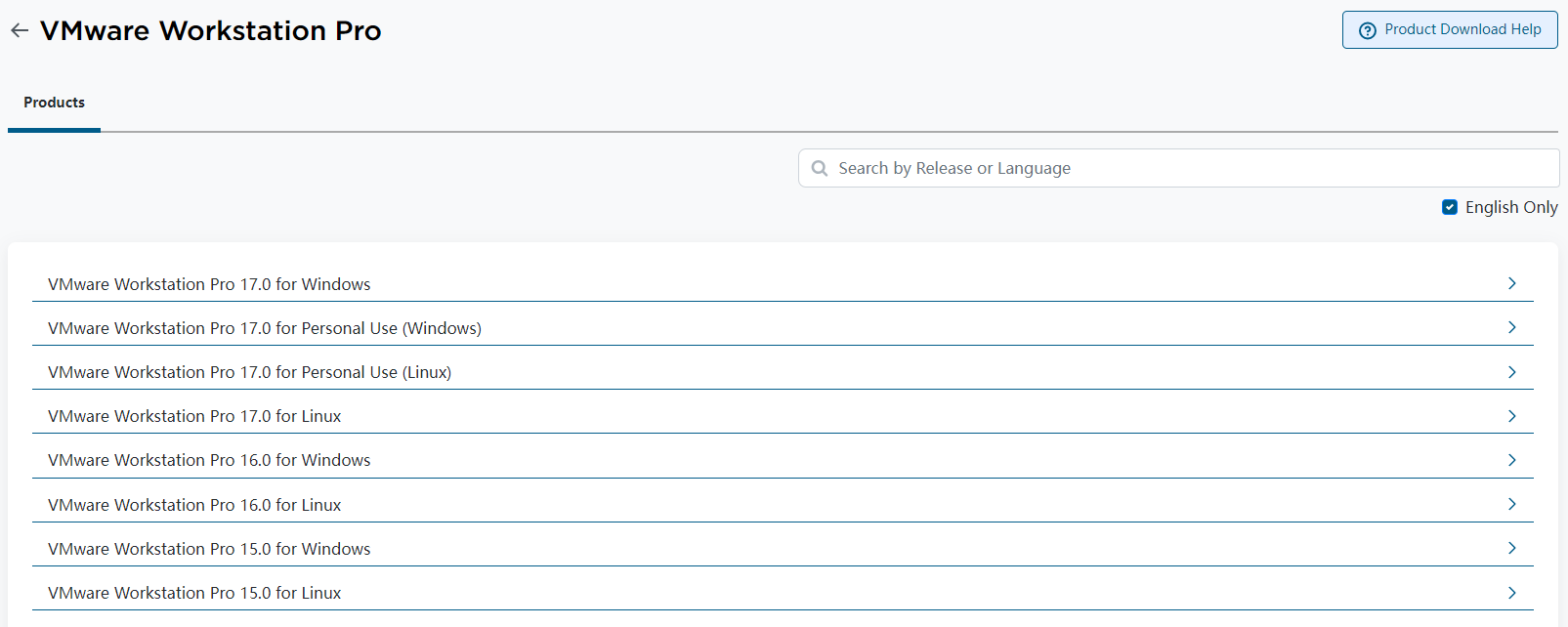
Click on the Arrow button on the right-hand side of VMware Workstation Pro 17.0 for Personal Use (Windows), and you’ll find sub-versions of it.
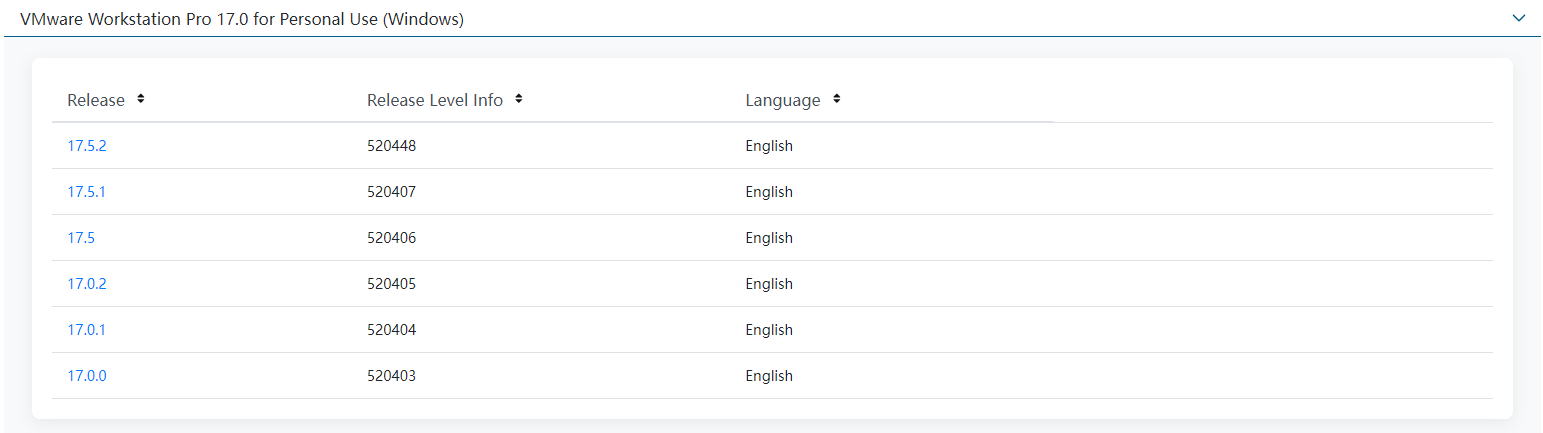
Select a specific version, and we’re going to the download page.
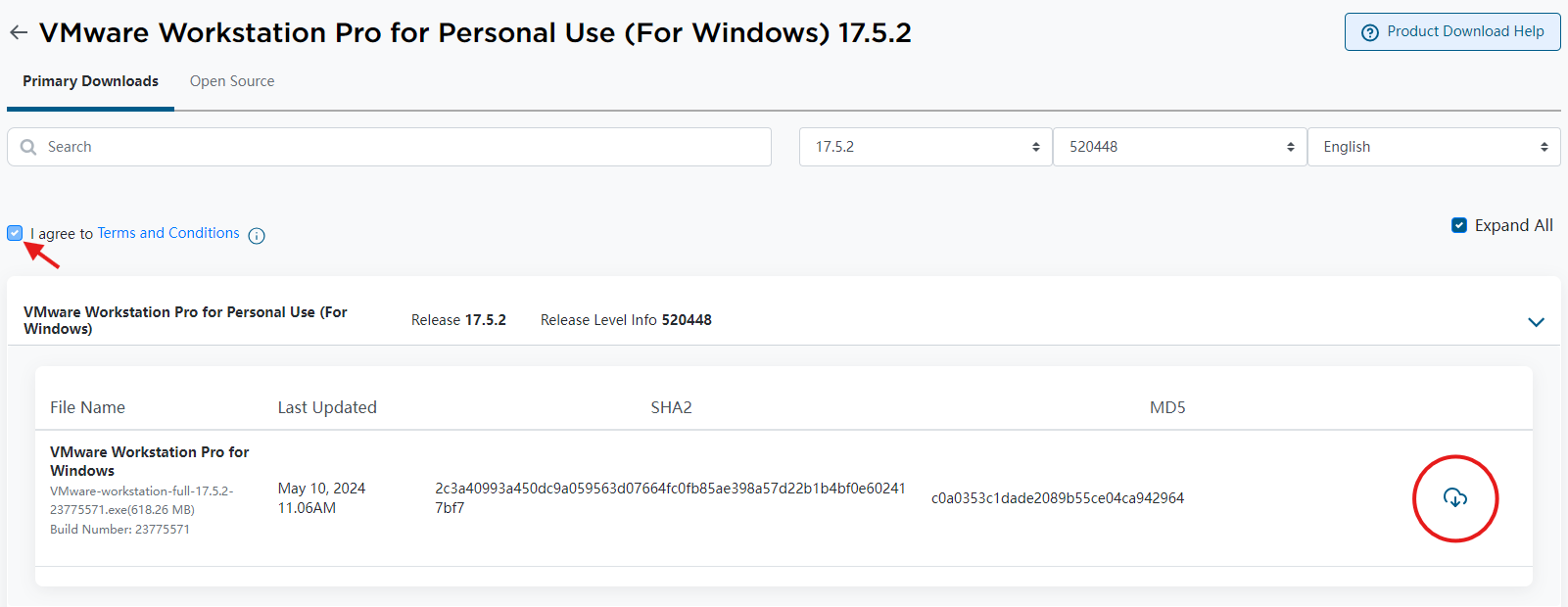
Terms and Conditions need to be checked first. Then, the download icon becomes clickable.
Is it all done? Not yet in some conditions. You may have to take another action before starting the download.
Complete Trade Compliance Verification
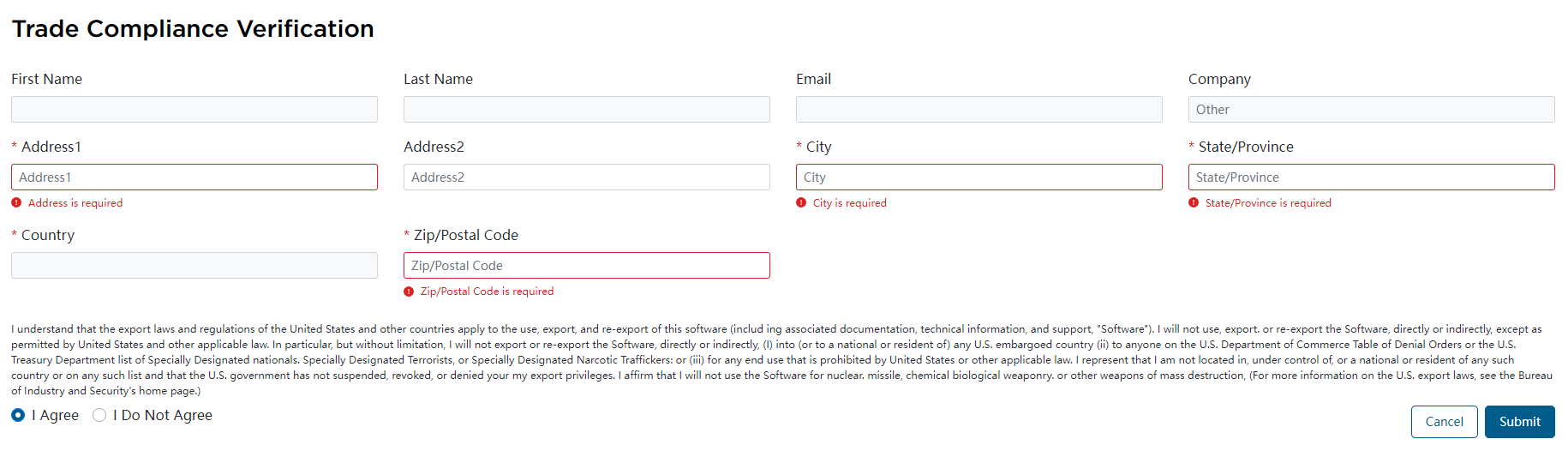
You may be asked to complete Trade Compliance Verification. We cannot blame Broadcom, as it is an American company and must comply with U.S. trade regulations.
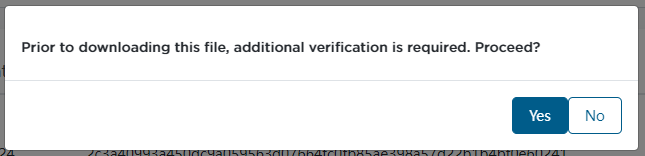
Actually, the verification is simple and won’t take you much time. Input the information as required and click the Submit button; everything is done then.
Start Downloading
Back to the download page, click on the Download icon, and now it’s going to start downloading via HTTPS.
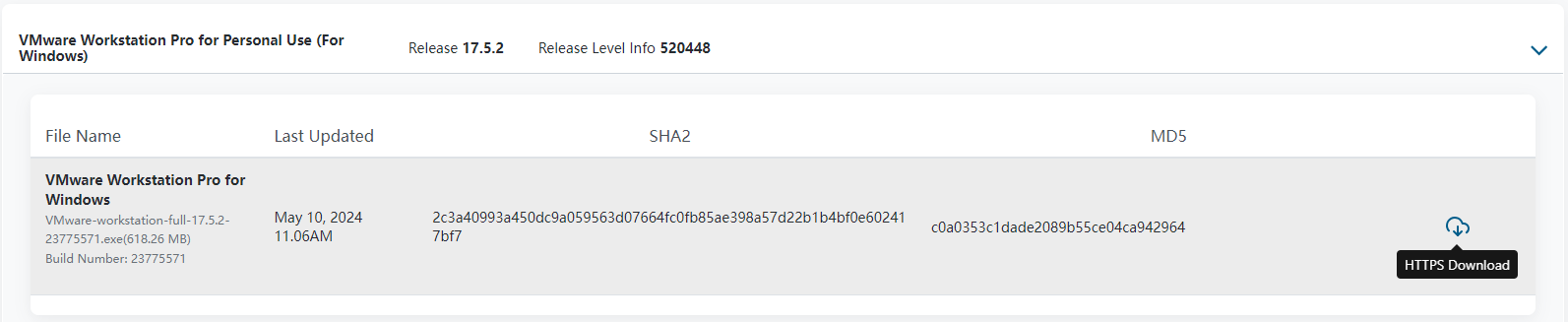
Download speed depends on your network. In my case, it completed in 1 minute, which is fast enough.
In this post, we only demonstrated how to download Workstation Pro. The download method for Fusion Pro is similar, so I will not go into details.
I know the whole download process is too cumbersome, but the files downloaded from the official channels are the safest and most reassuring. If you need a virtual machine, then it must be used frequently. As a bottom-level platform, if there are security issues, it will pose a huge threat to users.
You may also want to purchase a Windows license key to activate the guest OS (assume that it’s Windows 11). We highly recommend these:
