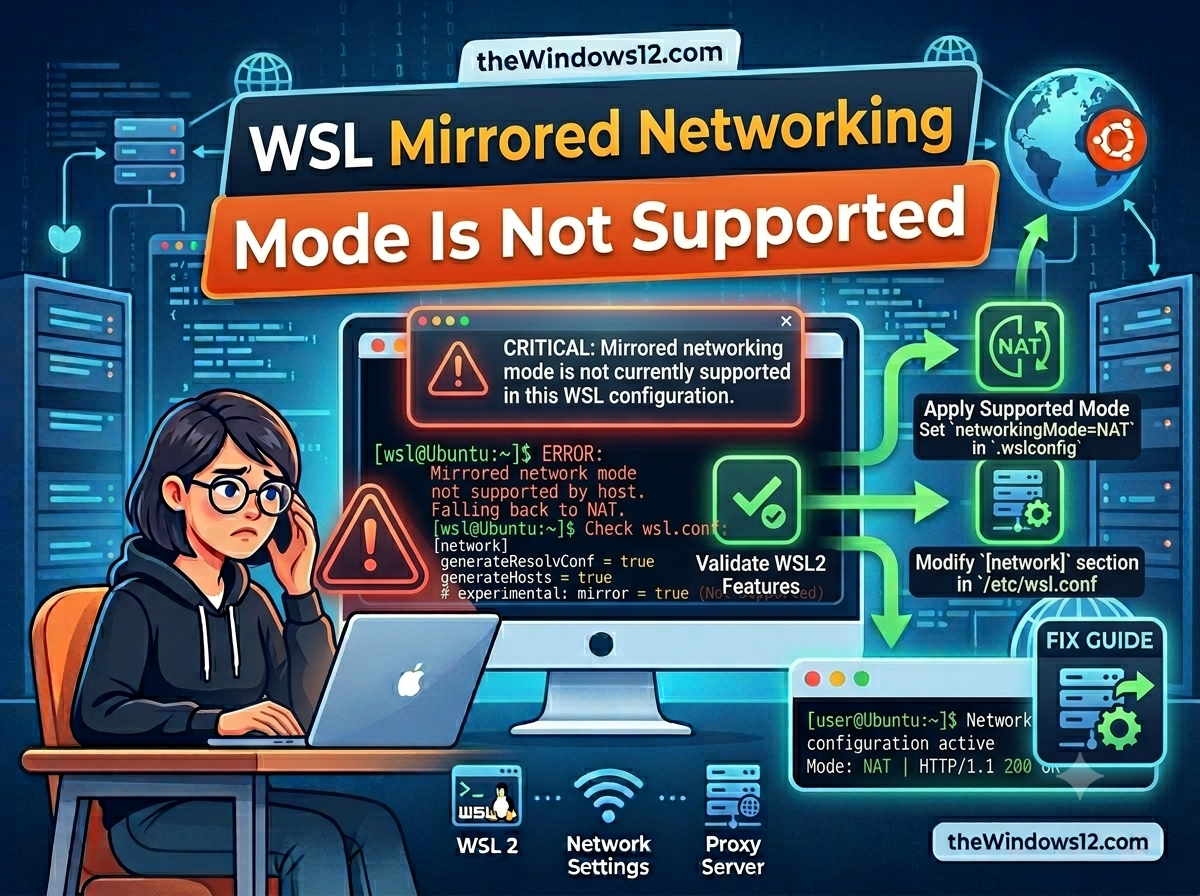
You added networkingMode=mirrored to your .wslconfig, restarted WSL, and instead of the smooth networking you expected, you got: “mirrored networking mode is not supported.” Frustrating, especially when every guide tells you mirrored mode is the fix for proxy issues.
Quick fix: This error means your Windows version or WSL version doesn’t support mirrored networking yet. Run wsl --update and make sure you’re on Windows 11 22H2+ or Windows 10 Build 19045+. If you can’t upgrade, use the NAT mode workaround below.
Why Mirrored Networking Isn’t Available
Mirrored networking was introduced in WSL as an experimental feature and later stabilized. It requires both a recent Windows build and an up-to-date WSL version. Here’s the breakdown:
| Requirement | Minimum Version | How to Check |
|---|---|---|
| Windows 11 | 22H2 (Build 22621+) | Press Win+R, type winver |
| Windows 10 | Build 19045+ | Same — winver |
| WSL version | 2.0.0+ | Run wsl --version |
| WSL2 Linux kernel | 5.15.133+ | Run wsl --status or uname -r inside WSL |
If any of these are below the minimum, mirrored mode won’t work.
Step-by-Step Fix
Step 1: Update WSL
Open PowerShell or Command Prompt and run:
wsl --update
This updates WSL to the latest version from the Microsoft Store or GitHub. After the update:
wsl --shutdown
Then restart WSL and check if the error is gone.
Step 2: Check Your Windows Build
Press Win+R, type winver, and hit Enter. You’ll see a dialog like:
Windows 11
Version 23H2
OS Build 22631.4460
If your build number is below 22621 (Windows 11) or 19045 (Windows 10), you need to update Windows:
- Go to Settings → Windows Update
- Click Check for updates
- Install any available feature updates
Step 3: Verify .wslconfig Syntax
A common mistake is putting networkingMode under the wrong section. It should be under [wsl2], not [experimental]:
[wsl2]
networkingMode=mirrored

[experimental]
autoMemoryReclaim=gradual
autoProxy=true
dnsTunneling=true
firewall=true
Wrong (this causes the error or is silently ignored):
[experimental]
networkingMode=mirrored    # ← Wrong section!
After editing .wslconfig, always run:
wsl --shutdown
Step 4: Verify It’s Working
Restart WSL, then run:
ip addr show eth0
In mirrored mode, you should see the same IP address as your Windows host (check with ipconfig in PowerShell). If you see a 172.x.x.x address, you’re still in NAT mode.
Can’t Upgrade? NAT Mode Workaround
If you’re stuck on an older Windows build (corporate laptop, locked-down machine, etc.), you can still make your proxy work in NAT mode. It’s more manual but gets the job done.
Option A: Manual Proxy Configuration
Inside WSL, find your Windows host IP:
HOST_IP=$(cat /etc/resolv.conf | grep nameserver | awk '{print $2}')
Then set the proxy:
export http_proxy="http://$HOST_IP:1080"
export https_proxy="http://$HOST_IP:1080"
Replace 1080 with your proxy port.
To make this persistent, add to ~/.bashrc:
get_host_ip() {
    cat /etc/resolv.conf | grep nameserver | awk '{print $2}'
}

export http_proxy="http://$(get_host_ip):1080"
export https_proxy="http://$(get_host_ip):1080"
export no_proxy="localhost,127.0.0.1"
Option B: Use localhost with WSL’s Loopback Fix
On newer Windows 10 builds (19044+), you can enable localhost forwarding:
[wsl2]
localhostForwarding=true
This lets you access 127.0.0.1:1080 from inside WSL, pointing to the Windows host. It’s not as seamless as mirrored mode, but it works for most proxy setups.
Known Issues with Mirrored Networking
Even when mirrored mode is working, there are a few edge cases to be aware of:
| Issue | Workaround |
|---|---|
| Docker Desktop conflicts | Update Docker Desktop to 4.26+ which has full mirrored mode support |
| VPN breaks mirrored networking | Some VPN clients (Cisco AnyConnect, GlobalProtect) reset the network stack. Try connecting the VPN after starting WSL |
ping doesn’t work | This is expected — ICMP is not supported in mirrored mode. Use curl or wget to test connectivity |
| Azure CLI issues | See our Azure CLI WSL fix guide for proxy-specific troubleshooting |
| Port binding shows “already in use” | In mirrored mode, ports are shared with Windows. If a port is in use on Windows, WSL can’t bind it — and vice versa |
How This Connects to Other WSL Proxy Issues
Mirrored networking is the foundation that fixes most WSL proxy problems:
| WSL Warning | Root Cause | Fix |
|---|---|---|
| “mirrored networking mode is not supported” | Windows/WSL too old | This guide — update everything |
| “localhost proxy not mirrored to WSL” | NAT mode isolates localhost | Enable mirrored mode |
| “An HTTP proxy change has been detected” | Proxy changed, WSL didn’t sync | HTTP proxy change fix |
Once mirrored mode is working, most of these warnings disappear.
FAQ
Q: Is mirrored networking stable enough for daily use?
A: Yes. It graduated from experimental to a standard WSL2 feature in 2024. As of 2026, it’s the recommended default for most users. The [experimental] section header in .wslconfig is a historical artifact — the feature itself is production-ready.
Q: Will mirrored mode slow down my network? A: No. In fact, it can be faster than NAT mode because there’s no virtual NAT layer. Connections go directly through the Windows network stack.
Q: Can I use mirrored mode on Windows 10 Home?
A: Yes, as long as you’re on Build 19045 or later and have WSL updated. Run wsl --update and check winver.
Q: My .wslconfig has other settings. Will mirrored mode conflict with them?
A: It works fine with autoMemoryReclaim, dnsTunneling, firewall, and autoProxy. It may conflict with kernelCommandLine settings that modify networking. When in doubt, start with the minimal config shown in Step 3 above.
Q: After enabling mirrored mode, hostname -I shows no IP. Is that normal?
A: Yes, in mirrored mode the network interfaces behave differently. Use ip addr or just test connectivity with curl google.com instead.
Reference: