
Clash Verge is a widely used proxy client on Windows, helping users optimize network access and manage traffic routing. At the same time, many people also run VMware Workstation or VMware Player on the same PC to host virtual machines (VMs). Now that VMware Workstation and Fusion are free, more users are setting up VMs — and running into this exact network conflict. If you haven’t downloaded VMware yet, see our free download guide.
However, when Clash Verge is running on the host PC, the VMware virtual machines may experience problems with no internet connectivity.
Why the Virtual Machine Has No Internet
By default, newly created VMware virtual machines use NAT (Network Address Translation) networking mode. In NAT mode, the VM connects to the internet via the host’s virtual network adapter, appearing to external networks as part of the host machine.
When Clash Verge is active on the host, NAT traffic from the VM must pass through the host’s virtual adapter and routing table. In certain cases, Clash Verge’s proxy or routing rules interfere with this process, preventing the NAT adapter from properly forwarding traffic.
Common symptoms include:
Network icon in the VM shows “No Internet Access” or “Limited”
Web browsers inside the VM fail to load pages
pingto external IPs times out
Solution: Switch from NAT to Bridged Networking
The most reliable fix is to change the VMware virtual machine’s network adapter from NAT to Bridged mode.
Why does Bridged mode solve the problem?
In Bridged mode, the VM connects directly to the same physical network as the host, just like another real computer, obtaining its own IP address.This setup bypasses VMware’s NAT layer, avoiding routing conflicts with Clash Verge.The VM and host become independent devices on the network, improving stability and compatibility.
Steps to change from NAT to Bridged mode (VMware Workstation example):
Power off the virtual machine.
In VMware, select the VM and click Edit virtual machine settings.
Under the Hardware tab, select Network Adapter.
Change Network connection from NAT to Bridged: Connected directly to the physical network.
Click OK to save and restart the VM.
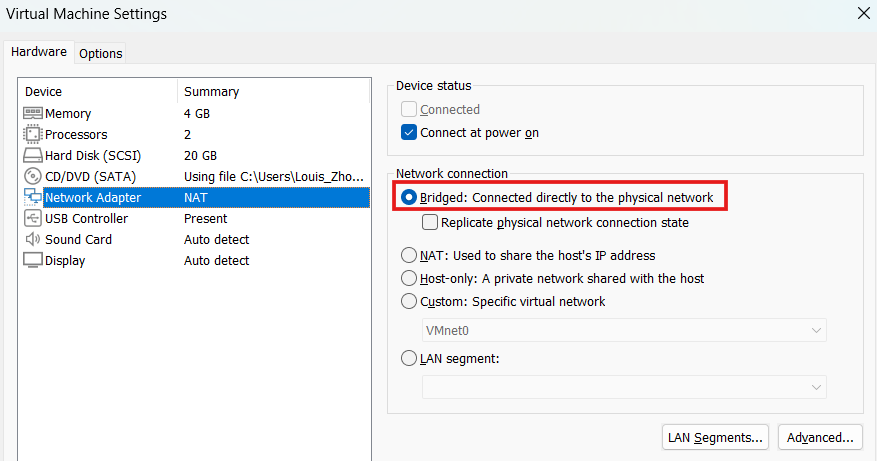
After switching to Bridged mode, the VM will connect to the physical network directly, restoring stable internet access without being affected by Clash Verge.
FAQ – VMware Virtual Machines & Clash Verge Network Issues
Q1: Why does my VMware virtual machine have no internet when Clash Verge is running on the host PC?
A1: This usually happens because the VM is using NAT mode, which routes traffic through the host’s virtual network adapter. Clash Verge’s routing rules may block or misroute NAT traffic, preventing the VM from accessing the internet.
Q2: How can I fix VMware VM internet issues caused by Clash Verge?
A2: Change the VM’s network adapter from NAT to Bridged mode. Bridged mode allows the VM to connect directly to the physical network, bypassing NAT and avoiding conflicts with Clash Verge.
Q3: What is the difference between NAT and Bridged mode in VMware?
A3: NAT mode shares the host’s IP address via a virtual adapter, while Bridged mode gives the VM its own IP address on the same network as the host. Bridged mode generally offers better compatibility with network devices and fewer proxy-related issues.
Q4: Will changing to Bridged mode affect my host PC’s internet connection?
A4: No. Bridged mode only changes how the VM connects to the network. Your host PC’s internet connection will remain unaffected.
