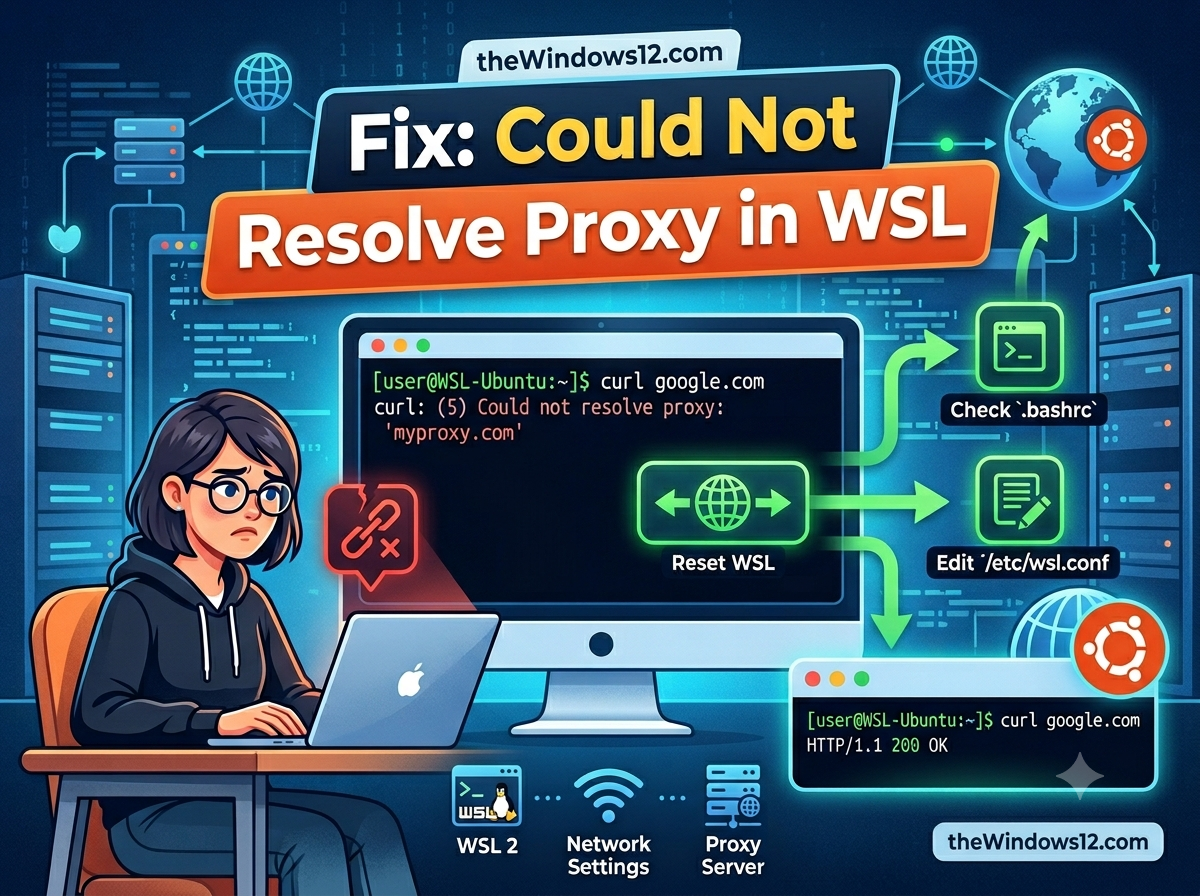
git clone fails with “could not resolve proxy.” apt update hangs forever. curl returns “Could not resolve proxy: 127.0.0.1.” You know the proxy is running on Windows — so why can’t WSL see it?
Quick fix: In WSL’s default NAT mode, 127.0.0.1 refers to WSL itself, not your Windows host. Switch to mirrored networking in .wslconfig and the proxy becomes reachable at localhost. If you can’t use mirrored mode, point your proxy to the Windows host IP instead of 127.0.0.1.
Why WSL Can’t Resolve Your Proxy
The “could not resolve proxy” error has three common causes, and they’re all related to WSL’s default networking:
Cause 1: Localhost Mismatch (Most Common)
In NAT mode (WSL2’s default), 127.0.0.1 inside WSL is not the same as 127.0.0.1 on Windows:
Windows:  127.0.0.1:1080  ← Your proxy is here
WSL NAT:  127.0.0.1:1080  ← Nothing is listening here!
When you set http_proxy=http://127.0.0.1:1080 inside WSL, it’s trying to connect to itself — and there’s no proxy there.
Cause 2: DNS Can’t Resolve the Proxy Hostname
If your proxy is set to a hostname instead of an IP (like http://proxy.company.com:8080), WSL’s DNS might not be able to resolve it. This happens when:
- Your DNS server is only reachable through the proxy (circular dependency)
- WSL’s DNS configuration was overwritten and points to a non-existent server
Cause 3: The Proxy Port Isn’t Listening
Your proxy app might not be running, or it might be listening on a different port than what you’ve configured.
Fix 1: Enable Mirrored Networking (Recommended)
This is the cleanest solution. It makes WSL share Windows’ entire network stack — same localhost, same DNS, same proxy.
Create or edit C:\Users\YourUsername\.wslconfig:
[wsl2]
networkingMode=mirrored

[experimental]
autoProxy=true
dnsTunneling=true
autoMemoryReclaim=gradual
firewall=true
Then restart WSL:
wsl --shutdown
After restarting, 127.0.0.1:1080 inside WSL now points to your Windows proxy. The “could not resolve proxy” error should be gone.
If you get “mirrored networking mode is not supported”, your Windows or WSL version is too old. See our mirrored networking fix guide for upgrade instructions.
Fix 2: NAT Mode — Point Proxy to Host IP
If you can’t use mirrored mode, you need to use the Windows host IP instead of 127.0.0.1.
Find the Host IP
Inside WSL, run:
cat /etc/resolv.conf | grep nameserver | awk '{print $2}'
This typically returns something like 172.28.0.1 — that’s your Windows host IP as seen from WSL.
Set Proxy with the Host IP
HOST_IP=$(cat /etc/resolv.conf | grep nameserver | awk '{print $2}')
export http_proxy="http://$HOST_IP:1080"
export https_proxy="http://$HOST_IP:1080"
export no_proxy="localhost,127.0.0.1,::1"
Replace 1080 with your actual proxy port.
Make It Persistent
Add this to your ~/.bashrc or ~/.zshrc:
# Auto-detect WSL host IP for proxy
get_wsl_host() {
    cat /etc/resolv.conf | grep nameserver | awk '{print $2}'
}

# Set proxy using host IP (NAT mode)
_proxy_port=1080  # Change this to your proxy port
export http_proxy="http://$(get_wsl_host):$_proxy_port"
export https_proxy="http://$(get_wsl_host):$_proxy_port"
export no_proxy="localhost,127.0.0.1,::1"

# Git proxy
git config --global http.proxy "http://$(get_wsl_host):$_proxy_port"
git config --global https.proxy "http://$(get_wsl_host):$_proxy_port"
Note: The host IP can change between WSL restarts. The
get_wsl_hostfunction handles this by recalculating each time you open a new shell.
Fix 3: Fix DNS Resolution
If your proxy uses a hostname (not an IP) and WSL can’t resolve it:
Check Current DNS
cat /etc/resolv.conf
You should see something like nameserver 172.28.0.1. If the nameserver looks wrong (e.g., 127.0.0.53 which is systemd-resolved), fix it:
Override DNS in WSL
- Create or edit
/etc/wsl.conf:
[network]
generateResolvConf = false
Restart WSL:
wsl --shutdownAfter restarting, manually set DNS:
sudo rm /etc/resolv.conf
echo "nameserver 8.8.8.8" | sudo tee /etc/resolv.conf
echo "nameserver 8.8.4.4" | sudo tee -a /etc/resolv.conf
- Test DNS:
nslookup proxy.company.com
If it resolves, the “could not resolve proxy” error should be fixed.
Or: Use dnsTunneling Instead
With mirrored networking, dnsTunneling=true routes all DNS through Windows, which already knows how to resolve your proxy hostname. This is simpler than manually overriding DNS.
Fix 4: Verify the Proxy Is Actually Running
Before diving deep into network configuration, make sure the basics are right:
On Windows (PowerShell):
# Check if something is listening on your proxy port
netstat -ano | findstr :1080
If nothing shows up, your proxy app isn’t running or is on a different port.
From WSL:
# Test if the proxy is reachable (mirrored mode)
curl -x http://127.0.0.1:1080 http://httpbin.org/ip

# Test if the proxy is reachable (NAT mode)
HOST_IP=$(cat /etc/resolv.conf | grep nameserver | awk '{print $2}')
curl -x http://$HOST_IP:1080 http://httpbin.org/ip
If curl returns an IP address, the proxy works. If it fails, the problem is connectivity, not resolution.
Tool-Specific Proxy Configuration
Even after fixing the proxy address, some tools need their own config:
Git
# Set (NAT mode)
git config --global http.proxy http://172.x.x.1:1080

# Set (mirrored mode)
git config --global http.proxy http://127.0.0.1:1080

# Unset (let autoProxy handle it)
git config --global --unset http.proxy
npm / yarn
npm config set proxy http://127.0.0.1:1080
npm config set https-proxy http://127.0.0.1:1080
apt (Debian/Ubuntu)
sudo tee /etc/apt/apt.conf.d/proxy.conf << 'EOF'
Acquire::http::Proxy "http://127.0.0.1:1080";
Acquire::https::Proxy "http://127.0.0.1:1080";
EOF
Docker
mkdir -p ~/.docker
cat > ~/.docker/config.json << 'EOF'
{
  "proxies": {
    "default": {
      "httpProxy": "http://127.0.0.1:1080",
      "httpsProxy": "http://127.0.0.1:1080",
      "noProxy": "localhost,127.0.0.1"
    }
  }
}
EOF
How This Fits Into the WSL Proxy Puzzle
| WSL Proxy Error | What’s Wrong | Guide |
|---|---|---|
| “could not resolve proxy” | Proxy address unreachable or DNS broken | This guide |
| “localhost proxy not mirrored” | NAT mode isolates localhost | Localhost proxy fix |
| “HTTP proxy change detected” | Proxy settings changed, WSL didn’t sync | HTTP proxy change fix |
| “mirrored networking not supported” | Windows/WSL too old | Mirrored networking fix |
| Error 0x80071772 | Can’t install WSL on non-C drive | 0x80071772 fix |
The meta-fix: Enabling mirrored networking resolves most of these at once. If you haven’t done that yet, start with our mirrored networking guide first.
FAQ
Q: I’m using mirrored mode but still get “could not resolve proxy.” What’s wrong?
A: Check if autoProxy=true is in your .wslconfig. Also verify that the proxy app is actually running on Windows. Run netstat -ano | findstr :YOUR_PORT in PowerShell.
Q: My proxy requires authentication. Does that change anything?
A: Yes. Set the proxy with credentials: export http_proxy="http://user:password@host:port". Some tools (like apt) may have trouble with @ in the URL — URL-encode the password if it contains special characters.
Q: Can I test if the proxy works without a real request?
A: curl -v -x http://127.0.0.1:1080 http://httpbin.org/ip 2>&1 | head -20 — this shows the connection handshake. If you see “Connected to 127.0.0.1 port 1080,” the proxy is reachable.
Q: The host IP changes every time I restart WSL. Is there a permanent fix?
A: Use mirrored networking (recommended) or the get_wsl_host() function from Fix 2 above, which auto-detects the current IP each time you open a shell.
Q: What if I’m behind a corporate proxy that uses a PAC file?
A: Set autoProxy=true in .wslconfig (mirrored mode). WSL will automatically pick up the Windows PAC file configuration. In NAT mode, you’d need to download the PAC file, parse it, and manually set the proxy — which is painful. Mirrored mode makes this seamless.
Reference: