
A while back, I got my hands on a Lenovo Legion R7000. After reinstalling the professional version of Windows 10 all my data seemed intact, and there weren’t any glaring issues. However, I couldn’t shake the feeling that the system was running slower than before.
Things got more interesting when I tried to install GeForce Experience. The installer threw an error, and I started wondering if this was connected to the sluggish performance. My theory was that since the laptop switches between integrated and dedicated graphics, a driver issue on either end could mess with both processing and output, leading to lag and stuttering.
I tried the usual fixes—restarting the computer, uninstalling the NVIDIA drivers from the control panel—but nothing worked. A quick search on Google revealed that I wasn’t alone. Plenty of others had run into the same problem, and thankfully, there were just as many proposed solutions.
The two most popular fixes were:
- Boot into Safe Mode, use a third-party tool to completely remove the NVIDIA drivers, then reinstall NVIDIA GeForce Experience in normal mode. The idea here is that the installation fails because remnants of the old drivers aren’t fully uninstalled.
- Enable three specific services: Device Install Service, Device Setup Manager, and Windows Installer.
The second option seemed less risky, so I decided to try that first.
I opened the Services window by running services.msc, located the three services mentioned above, and sure enough, they were all stopped. I started them up, then tried installing GeForce Experience again. Still no luck. But instead of panicking or dismissing the method, I restarted the system. Right after reboot, I made sure the three services were running, and this time, NVIDIA GeForce Experience installed without a hitch.
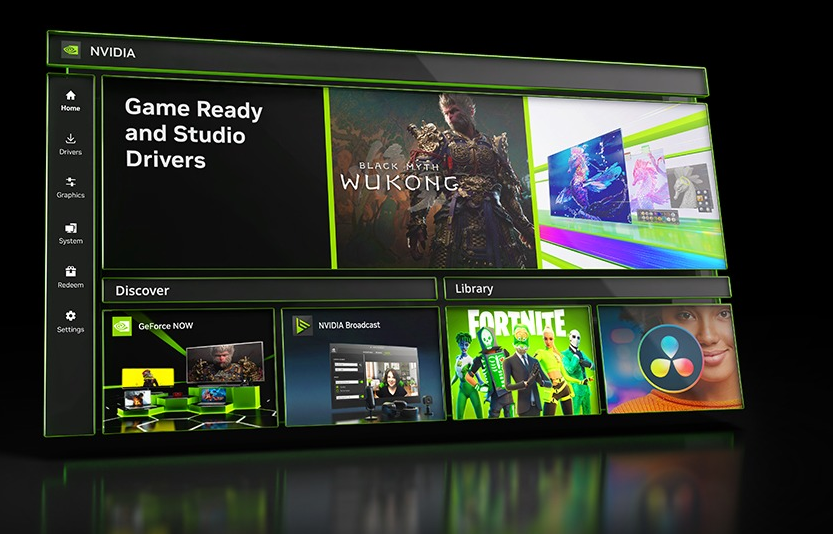
Once the new graphics drivers were in place, my system’s performance finally returned to normal.
By the way, if you check the description of the Device Install Service in the Services window, it says: “Enables a computer to recognize and adapt to hardware changes with minimal or no user input. Disabling this may result in system instability.” So, it’s definitely worth keeping an eye on these services if you’re troubleshooting similar issues.
