
Got a shiny new NVIDIA GPU but can’t figure out how to use it inside Docker on your Windows machine? You’re not alone. Setting up WSL2 with GPU acceleration used to be a nightmare—constant driver conflicts, weird permission issues, and documentation that seemed written for Linux experts only.
Good news: Microsoft and NVIDIA have made massive improvements in 2026, and getting your GPU recognized inside Docker containers is now smoother than ever. In this guide, I’ll walk you through every single step, from enabling WSL2 to running your first GPU-accelerated container. No more guessing games—just copy, paste, and you’re good to go.
1. Prerequisites for WSL2 Docker GPU on Windows

Before we dive in, let’s make sure your system is ready. You can’t just install WSL2 and expect GPU passthrough to work—you need the right hardware and software foundation first.
System Requirements:
- Windows 10 version 2004 or higher (Build 19041+) — or Windows 11 (recommended)
- NVIDIA GPU with Compute Capability 3.5+ (GTX 10 series, RTX 20/30/40 series)
- At least 8GB RAM (16GB recommended for running containers smoothly)
- Virtualization enabled in BIOS (Intel VT-x or AMD-V)
Tip: Check your current setup by opening Task Manager → Performance tab → CPU. Look for “Virtualization: Enabled” at the bottom. If it’s disabled, you’ll need to restart and enter your BIOS settings to turn it on.
2. Enable WSL2 and Virtual Machine Platform

This is where most people get stuck. The old method involved running a bunch of DISM commands, but Microsoft has streamlined the process significantly in 2026. Here’s the easiest way:
Method 1: One-Command Install (Recommended)
wsl --install
That’s it. This command automatically:
- Enables WSL2
- Enables Virtual Machine Platform
- Downloads and installs Ubuntu (default)
- Sets WSL2 as the default version
⚠️ Important: After installation completes, restart your computer. This is crucial—the changes won’t take effect until you reboot.
Method 2: Manual Installation (If Method 1 Fails)
If the above command throws an error, try the manual approach:
dism.exe /online /enable-feature /featurename:Microsoft-Windows-Subsystem-Linux /all /norestart
dism.exe /online /enable-feature /featurename:VirtualMachinePlatform /all /norestart
Then restart, and run:
wsl --set-default-version 2
wsl --install -d Ubuntu
Once Ubuntu is installed, launch it from the Start menu, create your user account, and you’re inside your Linux environment.
3. Install NVIDIA Driver and CUDA Toolkit
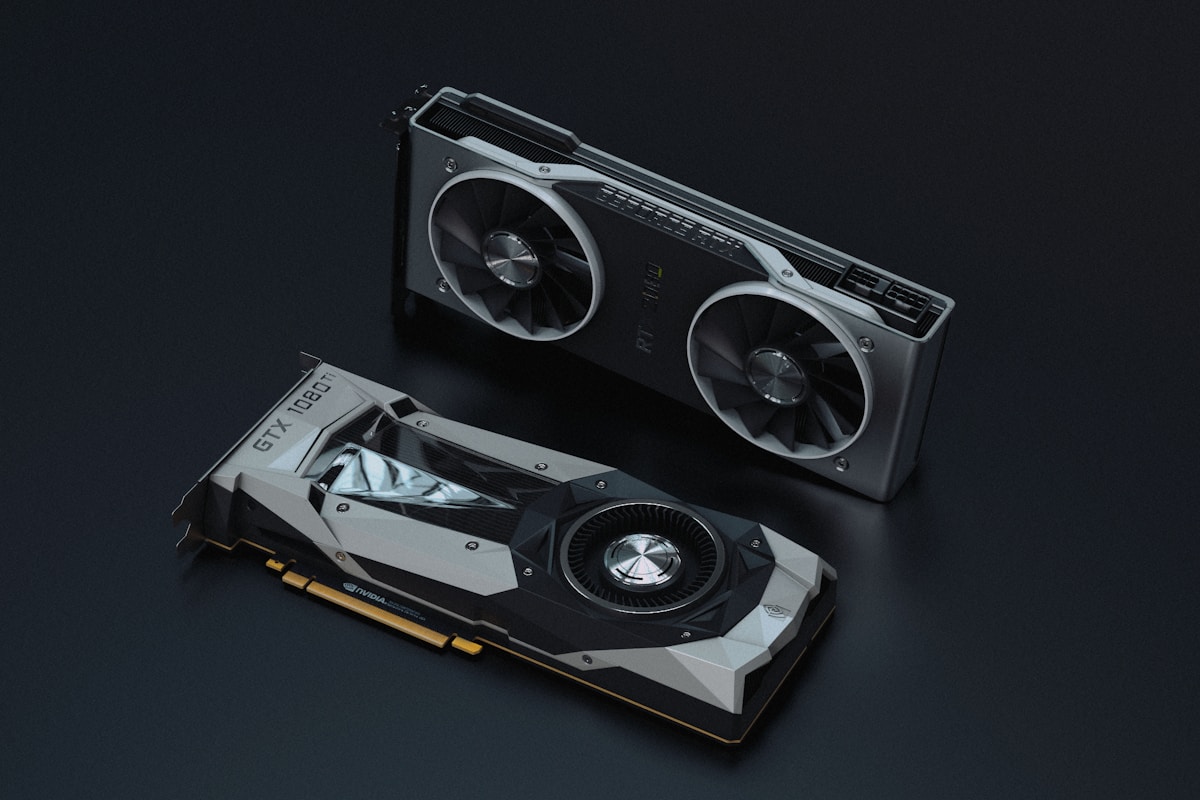
Now for the fun part—getting your GPU recognized. This is where many tutorials get outdated, but I’ll show you the 2026 way.
Step 1: Install NVIDIA Driver
The easiest method is to use the NVIDIA Control Panel or visit nvidia.com/drivers. Make sure you download the Game Ready or Studio Driver (whichever is latest), not the older Quadro versions.
After installation, verify by running:
nvidia-smi
You should see your GPU model, driver version, and CUDA version. If this command fails or shows “NVIDIA-SMI has failed,” your driver isn’t installed correctly.
Step 2: Install CUDA Toolkit (Optional but Recommended)
For machine learning work, you’ll want CUDA. Download from developer.nvidia.com/cuda-downloads. Choose “Windows → WSL-Ubuntu → 24.04” as your target. After installation, add CUDA to your PATH:
export PATH=/usr/local/cuda-12/bin:$PATH
export LD_LIBRARY_PATH=/usr/local/cuda-12/lib64:$LD_LIBRARY_PATH
4. Configure Docker Desktop with GPU Support

Docker Desktop 4.23+ has native WSL2 GPU support. Here’s how to enable it:
- Download Docker Desktop from docker.com
- During installation, check “Use the WSL2 based engine”
- After installation, go to Settings → Resources → WSL Integration
- Enable integration with your Ubuntu distribution
Verify GPU Support
Run this command in PowerShell (inside WSL):
docker run --gpus all nvidia/cuda:12.0-base-ubuntu22.04 nvidia-smi
If you see GPU output, congratulations—your GPU is now accessible inside Docker containers!
Common Issue: GPU Not Detected in Docker
If --gpus all fails with “no GPUs available,” try:
docker run --runtime=nvidia nvidia/cuda:12.0-base-ubuntu22.04 nvidia-smi
Make sure the nvidia-container-toolkit is installed inside WSL:
sudo apt-get update
sudo apt-get install -y nvidia-container-toolkit
sudo nvidia-ctk runtime configure --runtime=docker
5. Verify GPU Acceleration is Working
Time to test your setup with a real workload. Let’s run a simple CUDA container:
docker run --gpus all --rm nvidia/cuda:12.0.1-runtime-ubuntu22.04 nvidia-smi
This should display your GPU specs inside the container. For a more practical test, try running TensorFlow or PyTorch:
docker run --gpus all -it tensorflow/tensorflow:latest-gpu python -c "import tensorflow as tf; print(tf.config.list_physical_devices('GPU'))"
If you see your GPU listed, you’re all set. You can now run ML models, CUDA-accelerated applications, and GPU-intensive workloads directly from Docker on Windows.
Troubleshooting WSL Networking Issues
If your Docker containers can’t reach the internet or you’re seeing proxy-related warnings in WSL, check these guides:
| WSL Warning | Root Cause | Fix |
|---|---|---|
| “localhost proxy not mirrored to WSL” | NAT mode isolates localhost | WSL localhost proxy fix |
| “An HTTP proxy change has been detected” | Proxy changed, WSL didn’t sync | HTTP proxy change fix |
| “could not resolve proxy” | DNS or proxy address unreachable | Could not resolve proxy fix |
| “mirrored networking not supported” | Windows/WSL too old | Mirrored networking fix |
| Error 0x80071772 | WSL must install to C drive | 0x80071772 fix |
The meta-fix: enabling mirrored networking + autoProxy in .wslconfig resolves most proxy issues at once. If you haven’t set this up yet, start with our mirrored networking guide.
