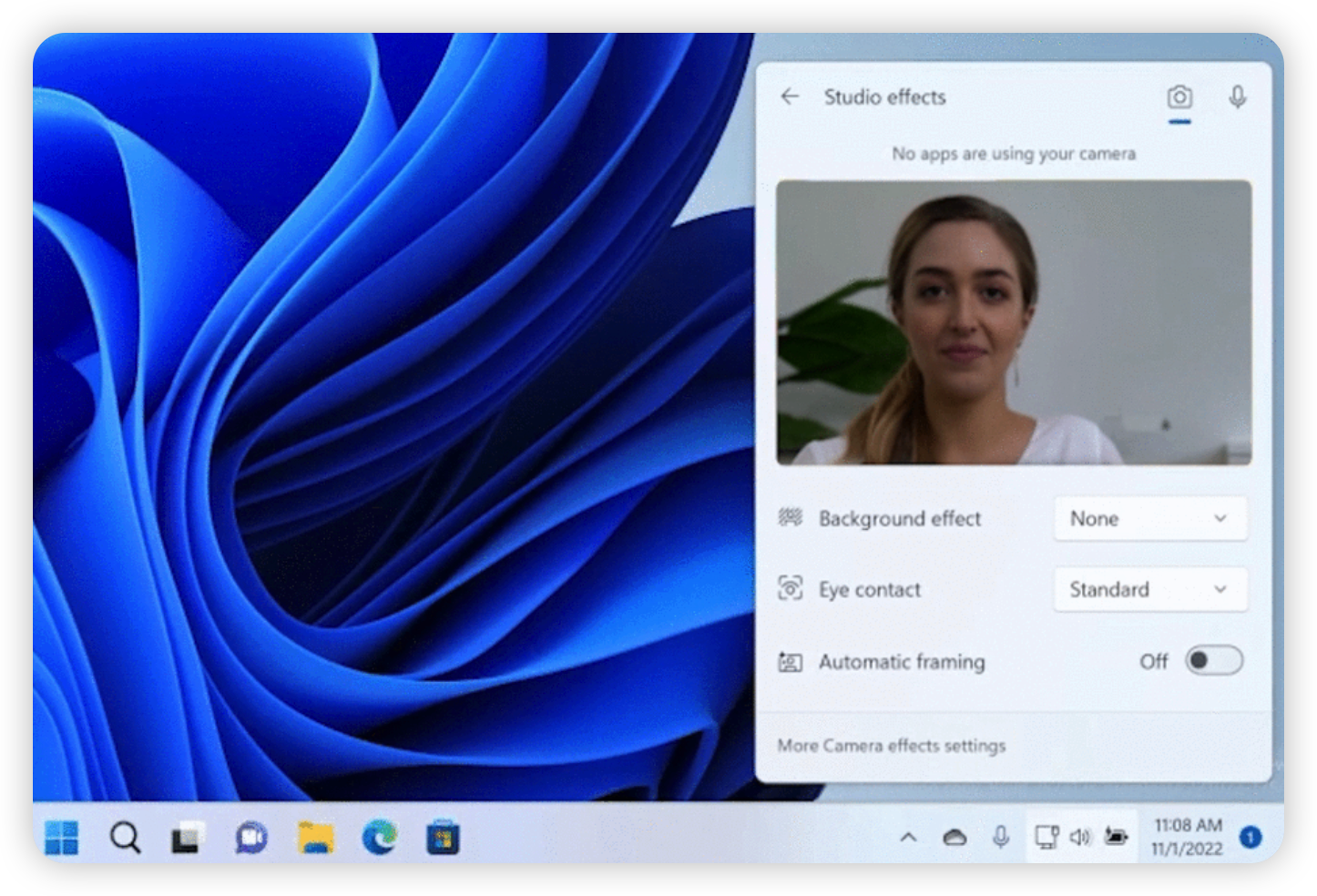
I think you have seen the Studio Effects button in the Quick Settings on Windows 11, and you may be wondering what it is and how to use it. That’s why you are here.
To make it easier for you to understand, I have prepared a video demo.
The first button clicked was the “Automatic framing” button. It is used to automatically adjust the camera angle and distance to the subject. When you are in a meeting, you can use this feature to make sure that you are in the center of the screen.
The second and the third are the “Portrait Blur” and the “Standard Blur” buttons. They are used to blur the background of the video, and only one blur effect can be used at a time.
And the last one is the “Eye Contact” button. The Eye Contact feature uses AI technology to adjust your eye direction in real time. It simulates direct eye contact with others during video calls, allowing you to view on-screen content freely and keep a professional and sincere visual impression in all business video scenarios.
I hope this video helps you understand the Studio Effects feature on Windows 11. Microsoft will definitely introduce more AI-powered features into AI PC or Copilot+ PC in the future. You will see.
To learn more about Studio Effects, you can visit Windows Studio Effects Overview from Microsoft Learn, and their support article.
