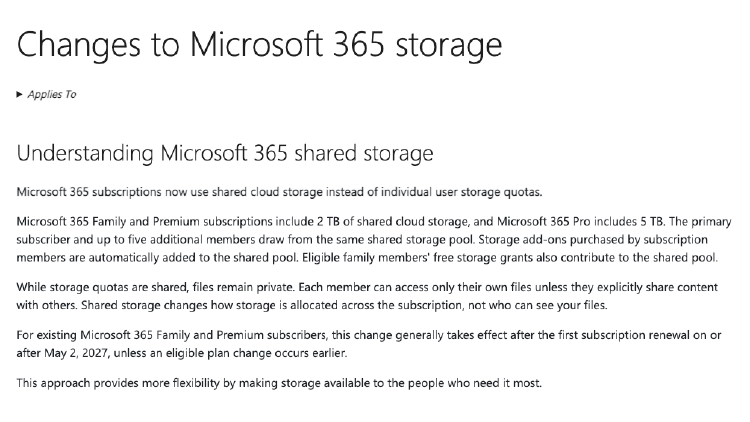
Microsoft 365 Family Storage Drops From 6 TB to a Shared 2 TB Pool
Microsoft 365 Family and Premium now include one 2 TB pool instead of 1 TB per person. Here are the dates, the fine print, and who actually loses storage.

Microsoft 365 Family and Premium now include one 2 TB pool instead of 1 TB per person. Here are the dates, the fine print, and who actually loses storage.

Microsoft reportedly raised Windows 11 OEM license fees by 7–10% starting July 2026. Retail prices stay at $119.99 / $168.99 — here's what it means for PC buyers.

NVIDIA will ship its final Windows 10 GeForce driver in October 2026. After that, Windows 10 users get no new Game Ready or Studio Driver updates.

Ubuntu adoption through Windows Subsystem for Linux (WSL) is growing faster than native Ubuntu desktop usage. Here's why developers are increasingly choosing Windows and Linux together instead of picking one over the other.

Step-by-step guide to remove your Microsoft account password and switch to passwordless login using Authenticator, Windows Hello, or a passkey.

npm.ps1 cannot be loaded because running scripts is disabled on this system? Fix the PowerShell execution policy in 2 steps and run npm commands normally.

WSL cannot resolve your proxy? Fix 'Could not resolve proxy' in WSL by syncing Windows proxy settings with mirrored networking and autoProxy.

WSL says mirrored networking is not supported? Check your Windows and WSL versions and enable the feature step by step, so autoProxy and mirrored mode work.

See 'An HTTP proxy change has been detected' in WSL? Here's how to fix it permanently with mirrored networking and autoProxy so WSL syncs proxy changes.

Turn your screen recording into a GIF without any third-party software, with the built-in Snipping Tool on Windows 11.

What is Studio Effects on Windows 11? How to use it? Here is a video demo which helps you understand the feature.